

![QubIDE [Sinclair QL]](https://www.jungsi.de/blog/wp-content/uploads/qubide.jpg)
The QubIDE is an AT/IDE hard disk interface for QL systems, developed by Zeljko Nastasic and marketed by Qubbesoft (1996). The original unit featured a pass-through connector, allowing additional interfaces (such as memory or floppy disk drives) to be attached. ROM version 1.53 added support for using "foreign" disk cartridges, such as SyQuest removable media. ROM version 2.0 (which also required an update to the GAL1 and GAL2 chips) introduced a "Trash Can" feature and added support for ATAPI-IDE devices, such as the Iomega ZIP drive. The various ROM versions and support utilities are available for download on the Sinclair QL Homepage.
Unfortunately, this *QubIDE* clone does not feature a pass-through interface connector, making it impossible to use alongside a floppy disk interface, for example. To enable use with another interface, one could employ a so-called "backplane," though—regrettably—none are currently available for purchase. The unit uses ROM version 1.56. An update to ROM 2.02 is available on *SellMyRetro*.
Since no original documentation was available, attempts were made some years ago to replicate the *QubIDE*, but the project was eventually abandoned. In 2013, a hobbyist from Spain set out to develop a board based on the documentation that had since become available. Once again, the question arose as to how data could be transferred to the appropriate storage media. Things went quiet for a long time after that, until early 2015, when news suddenly arrived from Spain that the first batch had been produced and that PC software for data transfer was also available. This software allows for direct access to storage media formatted with the QubIDE!
The original manual and the software for using the QubIDE interface can be found here: Sinclair QL QubIDE Interface
For my example, I am using a "standard" QL—a 128 MB PQI *DiskOnModule* (purchased from Pollin Electronic for €2) serves as the storage medium in the *QubIDE*—and my QL is equipped with an MGG ROM featuring Toolkit II (hence there are no jumpers on the interface).
Here is my attempt to translate the instructions into German as effectively as possible.
Further down, you will also find instructions for using the "Image Editor" software developed by Habi.
Editing Sinclair QL ZIP files
Step 1: QubIDE Jumper Settings
First, you need to determine the memory location where the QubIDE EPROM will be placed. This location depends on your Sinclair QL ROM and the other installed interfaces.
- ROM Sinclair QL 48K: JM, JS, Minerva, MGG, ...
Recommended option: 0C000h - Jumpers J3, J4 and J5
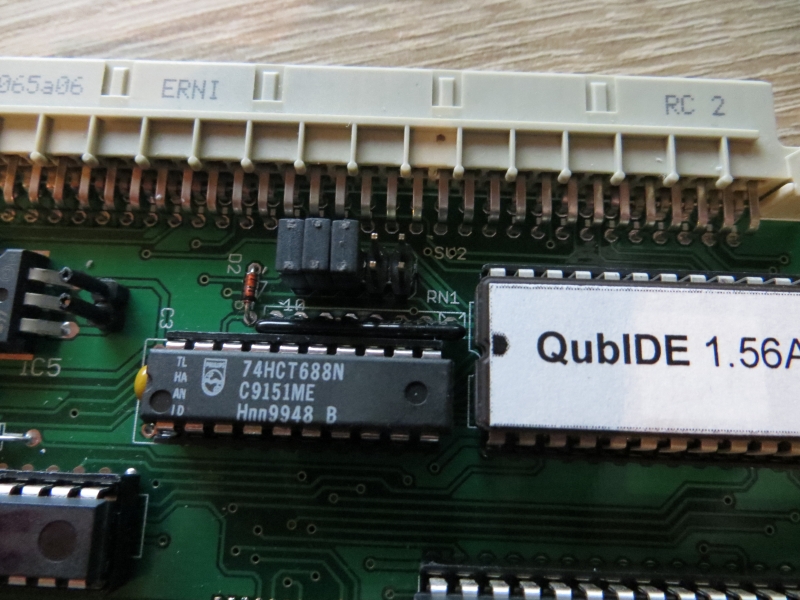
– ROM Sinclair QL 64K: JS+TK2, Minerva+TK2, …
Recommended option: FC000h – no jumpers
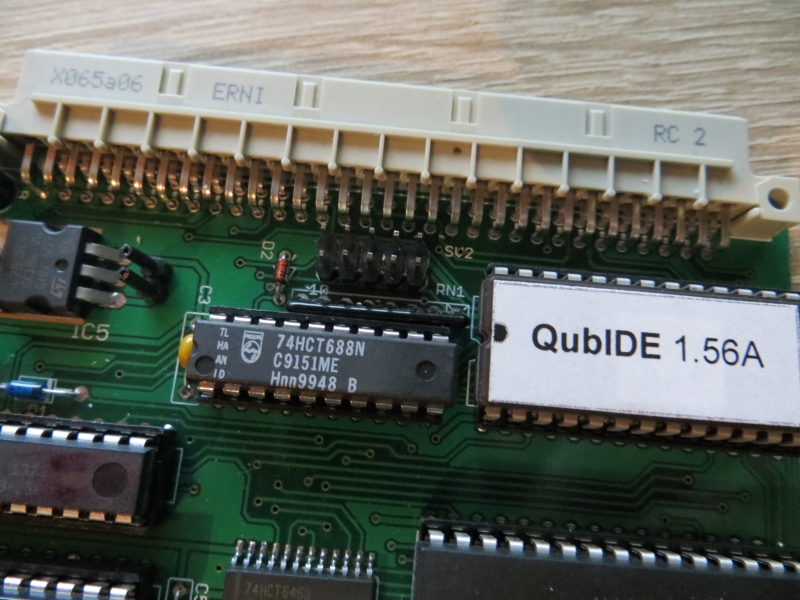
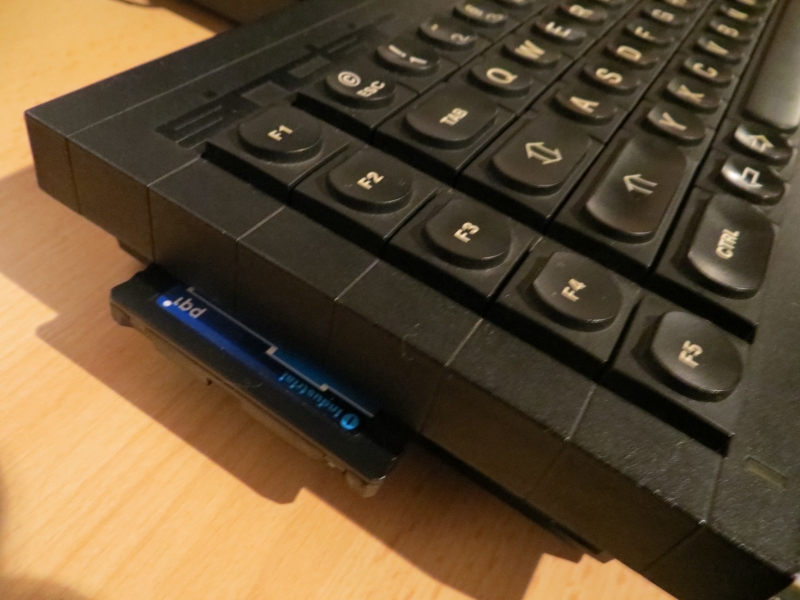
Step 2: Connecting the interface to the Sinclair QL
– Remove the cover on the left side
– Plug in the interface
Step 3: Connecting the IDE device (HDD, CD-IDE, SD-IDE adapter, DOM)
The QubIDE has been tested with several adapters: an SD-IDE adapter and a CF-IDE adapter. All of them work, but the CF adapter may have a minor issue regarding drive geometry. In some cases, the adapter needs to be modified to receive power from pin 20 of the IDE connector.
It was also tested with a DOM (DiskOnModule):
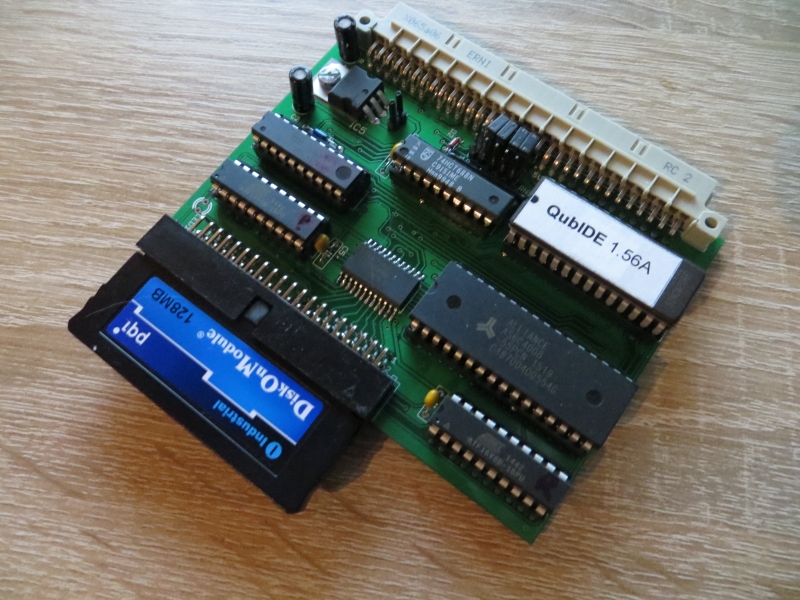
I use DOM modules because they are very inexpensive—the downside is that you need an adapter to connect them to a computer. CF adapters might be a bit more practical in this regard.
Step 4: Switch on the Sinclair
When you start your Sinclair for the first time, the following screen appears (starting with QubIDE/REBEL…) – the preceding messages are from the QL-SD 🙂
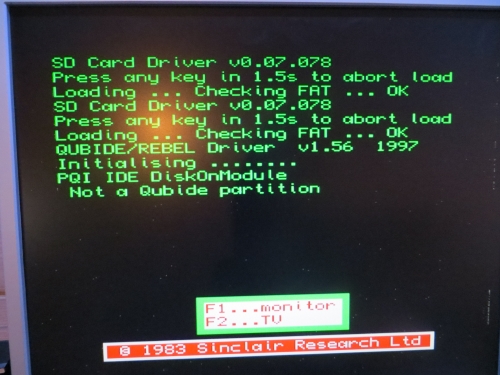
– QubIDE ROM (1.56) is displayed
– An IDE device has been found—in this example, a 128 MB DiskOnModule.
– The IDE device is unformatted.
Step 5: Formatting the IDE device
Be sure to read the original documentation before formatting the IDE device. You will need to select different options depending on the storage, the capacity of the IDE device, and the size of the primary partition.
Example 1: SD card with a size ≤ 128 MB
– 32 MB SD memory card
– one partition using the entire storage capacity
– small block size (8)
Example 2: CF card/DOM module with a capacity of ≤ 128 MB
– Important note: To avoid the "FAT is wrong" error, you should know the exact specifications of the CF card. You can easily retrieve this information using Pera Ptunik's drive image program.
– 128 MB
– one partition using the entire space
– do not use: 0=all
– specify the cylinders shown in the drive imaging program
– small block size (8); another good size is 16
I used this variant for my 128 MB DOM.
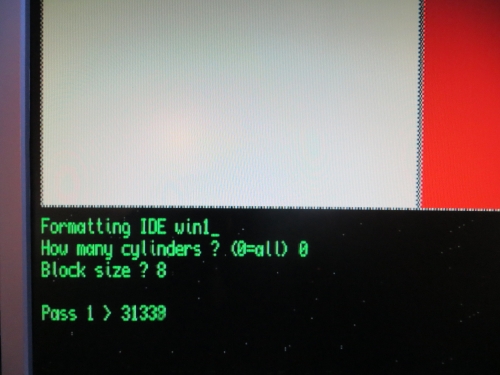
Example 3: Devices with a capacity > 128 MB
If you have an IDE device larger than 128 MB and/or want to have multiple partitions, you must use the `partition_exe` program included in QubIDE Disk Utilities 2.01 (version 1.56 does not work). You can download the program here:
https://sinclairql.net/djw/qlrom/qub201disk.zip
Unfortunately, I can't go into this part of the instructions in more detail because I couldn't test it further - I don't have Linux available.
Using ZIP files for the Sinclair QL with the Image Editor program
Notes:
– Equipment used in this example: Sinclair QL with JS+TK2 ROM (64K), QubIDE with 512K memory expansion, SD-IDE adapter, and 32 MB SD memory card
– PC running Windows XP
Download the program, extract it and start it (run it with administrator rights on Windows 10).
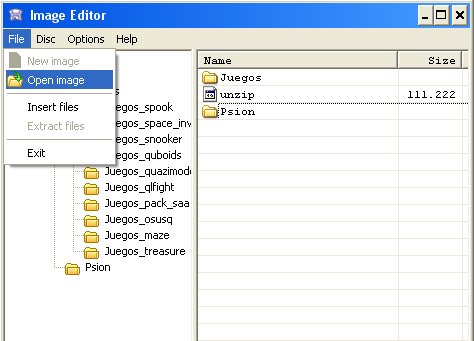
Select the ZIP file: -> File -> Open Image -> Select ZIP file
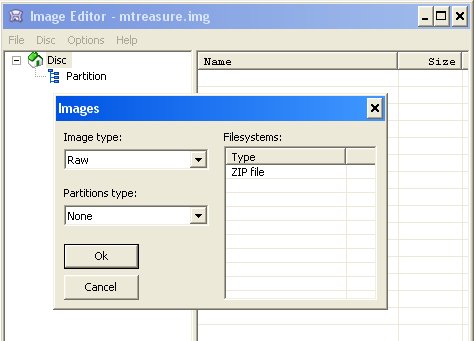
A ZIP file for the Sinclair QL is detected -> *OK*
This will display the files contained in the archive.
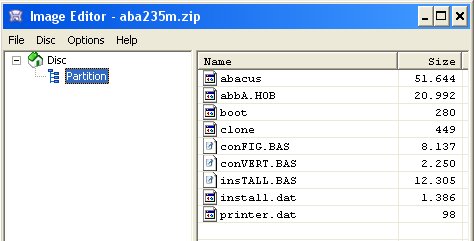
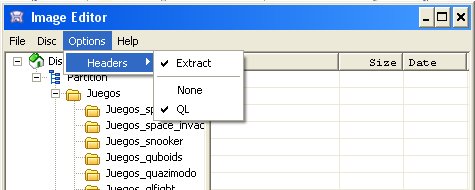
Exports the files: -> Options -> Headers -> Extract -> QL
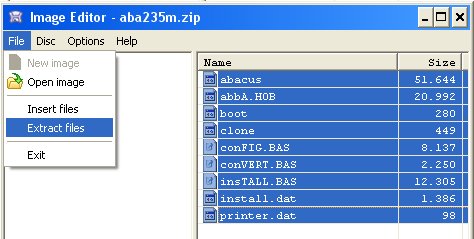
Select the files you want to export (otherwise, the next option will not appear)
-> Files -> Extract Files
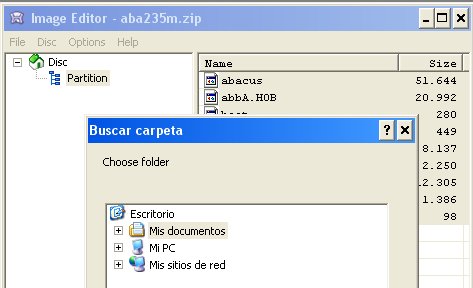
Select the destination where the files should be saved.
Saves the programs to the IDE device:
-> Disc -> Open Disc
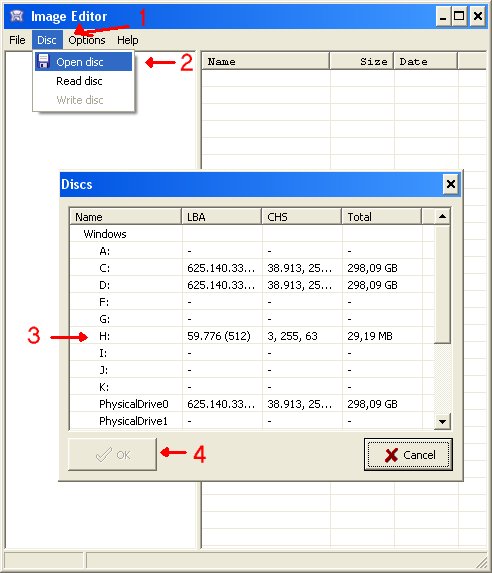
Select the QL-IDE storage and click "OK".
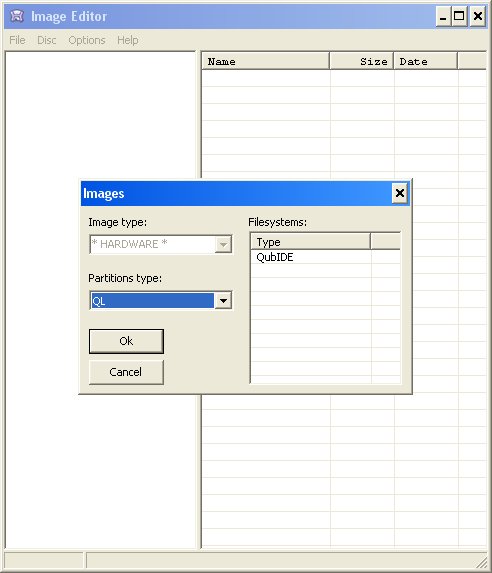
The program will detect that the device is in QubIDE format -> OK
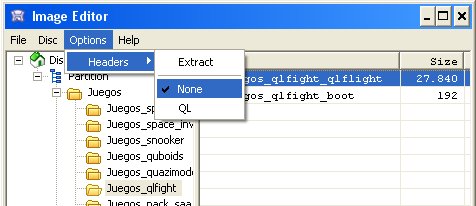
Nun müsst ihr noch mitteilen, dass nichts mit den QL-Headern gemacht werden soll -> Options -> Headers -> None
-> File -> Insert Files
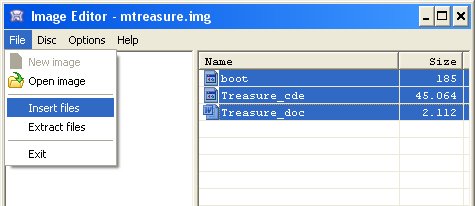
Select the programs. The software automatically changes the file extension from "." to the QL extension "_". The programs are then placed in the selected directory.
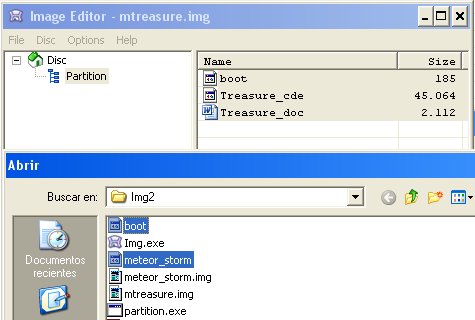
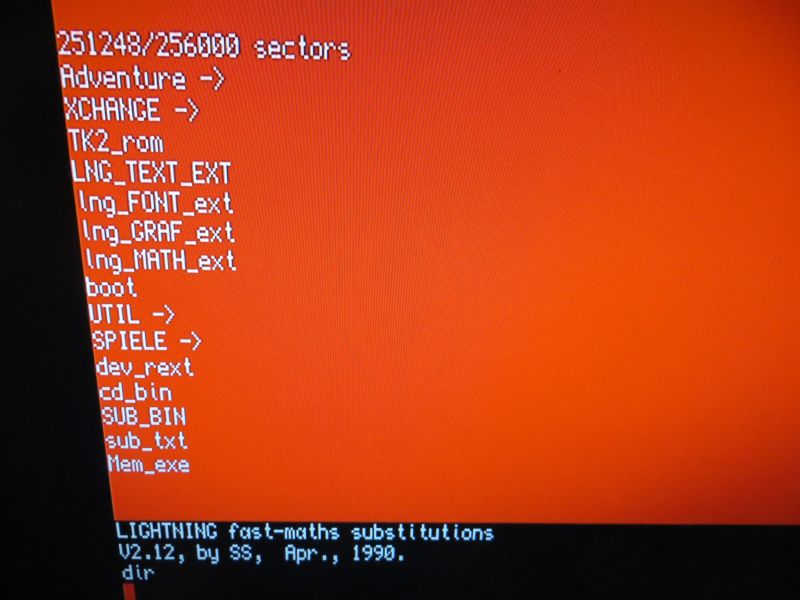
QubIDE commands – specific to this expansion (included in ROM)
WIN_DRIVE number
WIN_DRIVE 1 – “unmounts” WIN 1 (if not in use)
WIN_DRIVE 2,1,4 – assigns WIN2 as the fourth partition on the first drive
MAKE_DIR (in case you don't have a current TK2)
MAKE_DIR win1_c68_ (the final underscore is optional) creates a subdirectory named c68_ on WIN1
If a file with a name such as win1_c68_doc already exists, attempting to create the directory will result in an error message -> "In Use"
WIN_USE is used to make the IDE act as if it had a different name
WIN_USE FLP - the QubIDE acts as if it were called FLP
WIN_USE or WIN_USE WIN resets the setting again
FORMAT WIN1_xxxxxxxxxx, where xxxxxxxxxx is the name
It is great to see the QubIDE brought back to life. This adds another mass storage device to the small QL market—one that is based on proven technology and operates reliably. It would have been nice to have a pass-through interface connector on the standard model, allowing for use alongside a floppy disk interface or a Gold Card. However, you do need to familiarize yourself with the system and possess some basic QL knowledge to make effective use of it.
![mICE [Sinclair QL]](https://www.jungsi.de/blog/wp-content/uploads/2013/09/mICE-inkl-USB-Adapter.jpg)
![Sinclair QL [Sinclair]](https://www.jungsi.de/blog/wp-content/uploads/2012/11/QL-kl.jpg)
![QL-SD [Sinclair QL]](https://www.jungsi.de/blog/wp-content/uploads/2014/04/QL-SD-Laufwerk.jpg)
Hallo, wo kann ich es kaufen???
Hallo,
leider gibt es keine, mir bekannte Quelle, da viele der Geräte in Russland gebaut wurden.
Am besten immer wieder einen Blick auf https://www.sellmyretro.com/ werfen. Das ist eine der besten Quellen für Sinclair-Hardware.
Es ist auch möglich im englischen QL-Forum nachzufragen ob noch jemand Interfaces hat:
http://www.qlforum.co.uk/
Viele Grüße
Jungsi