

![Unicard mk3b [Sharp MZ]](https://www.jungsi.de/blog/wp-content/uploads/Unicard-vorne.jpg)
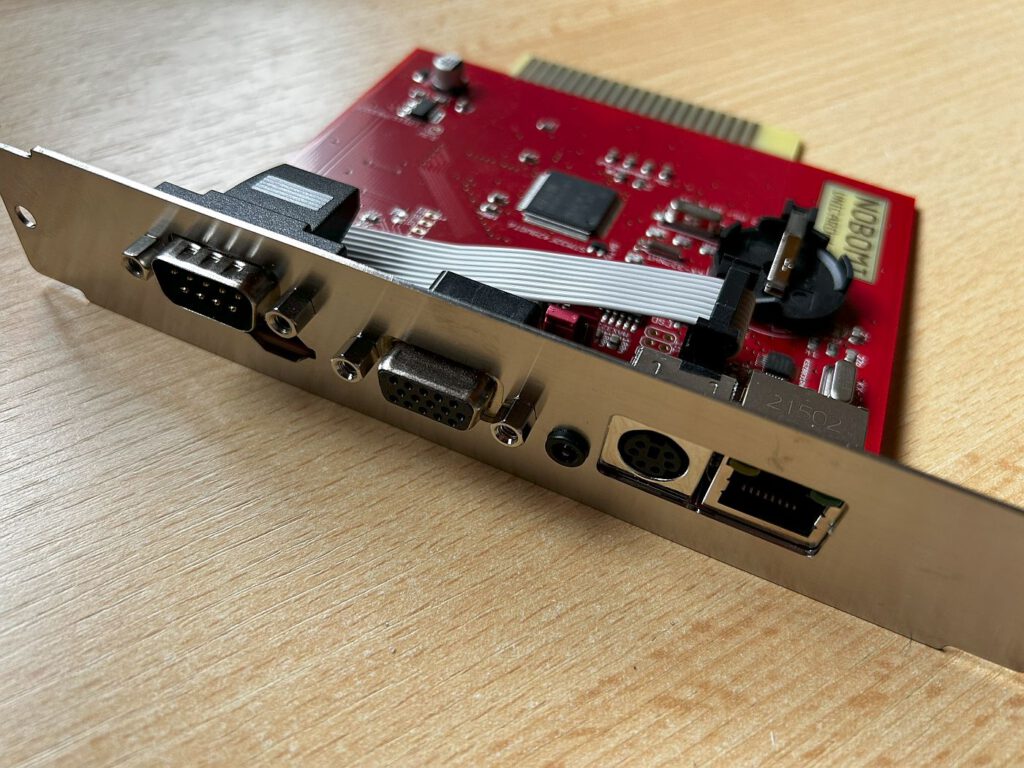
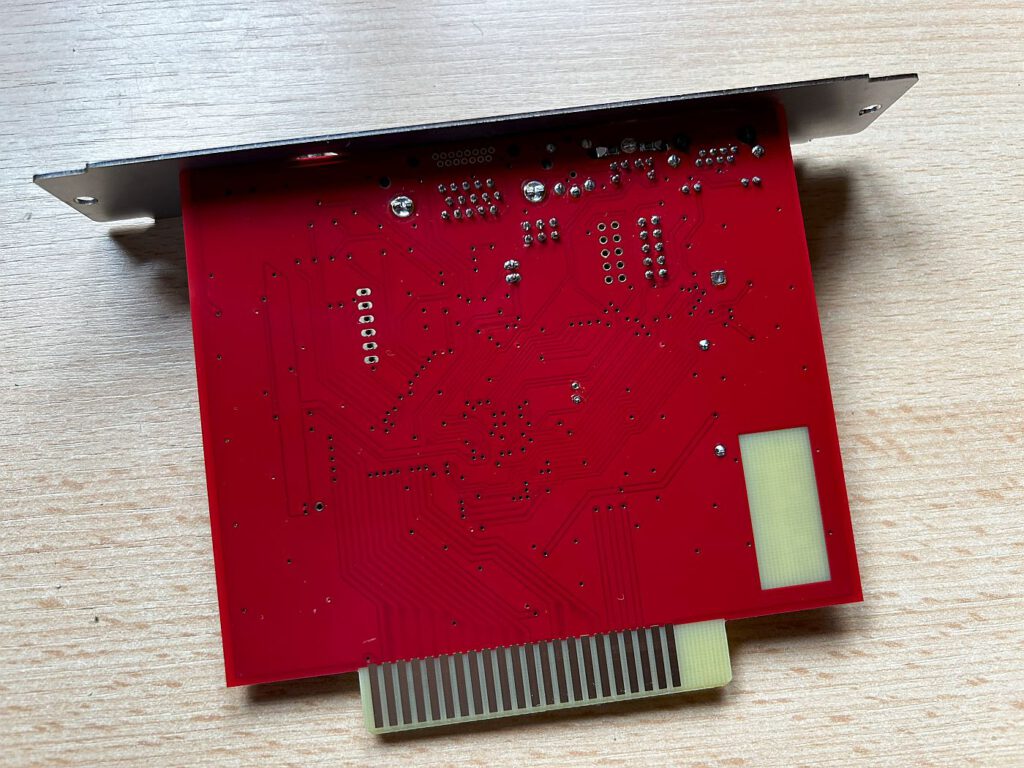
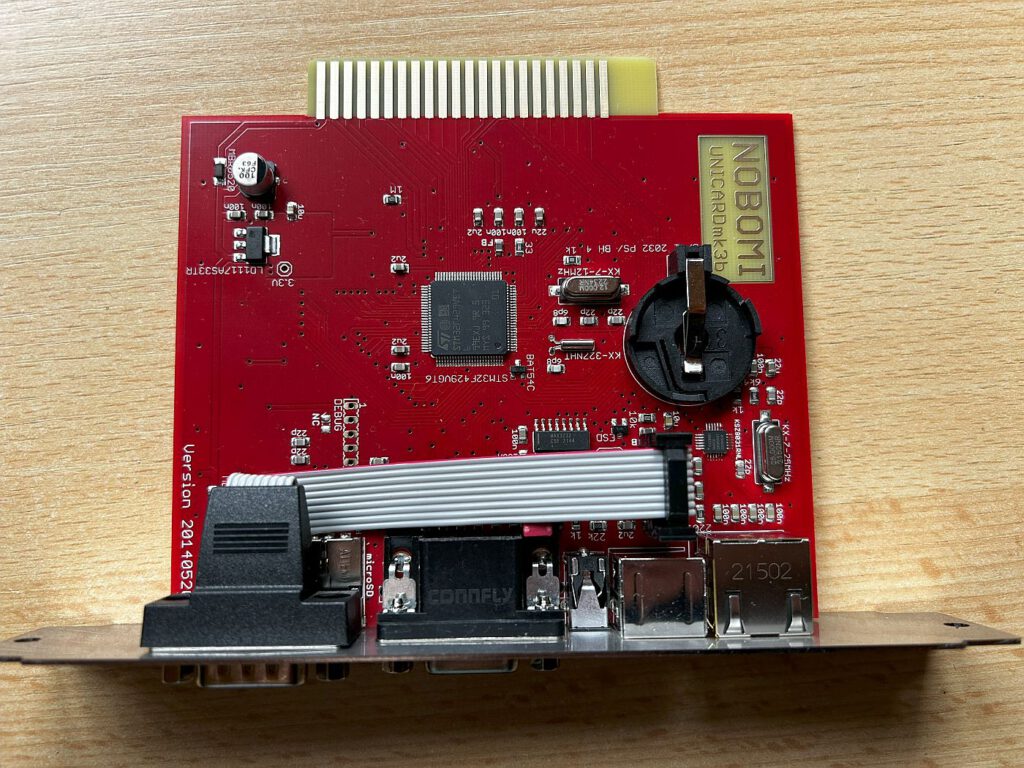
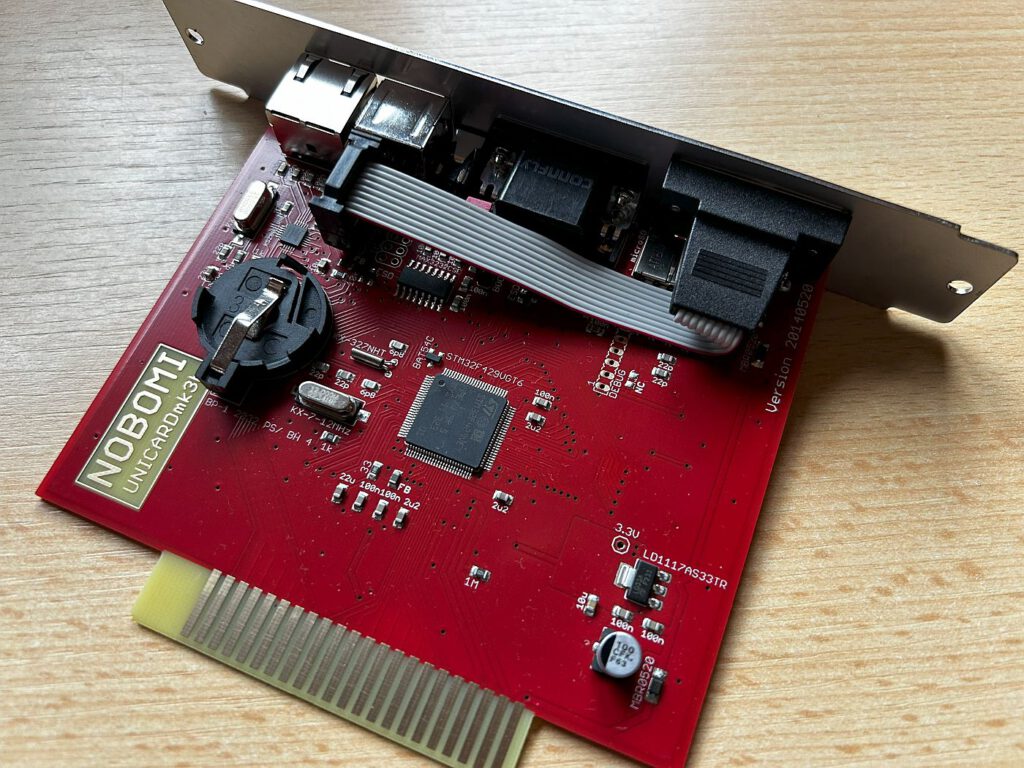
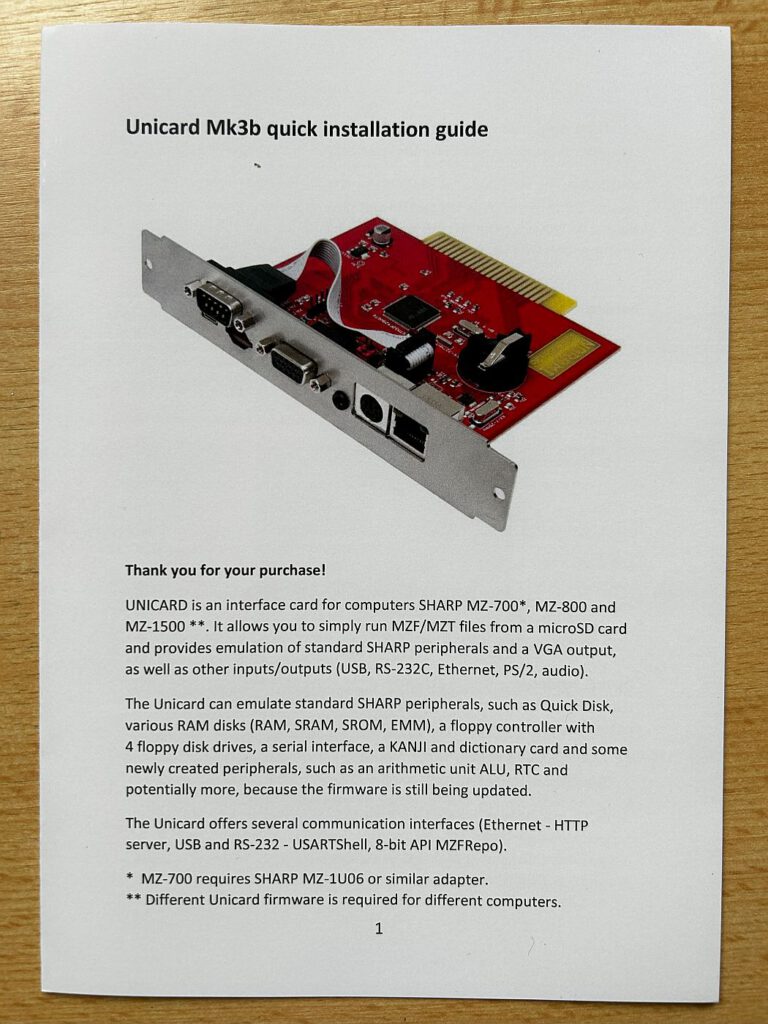
A modern expansion for the Sharp MZ? That is exactly what the Unicard mk3b is! This versatile add-on is sold via the small online shop retrocomp.cz and produced only in limited quantities. It is compatible with the Sharp MZ-800 and MZ-1500, and—with some limitations—the MZ-700 as well. At the heart of the board lies an STM32F429, a Cortex-M4 core running at 180 MHz.
The price is €140 (including shipping)—not exactly cheap, but the feature set on offer is impressive.
What can the Unicard do?
✔ Easily load MZF/MZT files from a microSD card
✔ Emulation of Sharp expansions such as floppy disk drive, Quick-Disk, RAM disk
✔ Ports: VGA output, USB, RS-232, Ethernet, PS/2, audio
Prerequisites
- An adapter board is required for the MZ-700.
- With the MZ-800 the VRAM should be expanded to 32 KB (see my article on the computer).
To get started, I recommend downloading the demo disk from sharpwiki.cz and copying it to a microSD card. This allows you to quickly learn the basic functions.
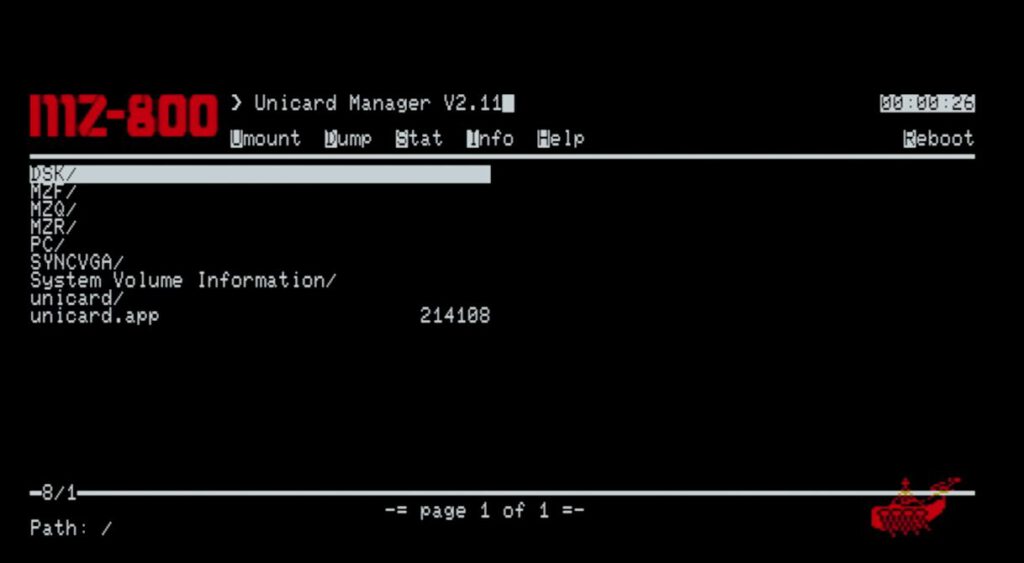
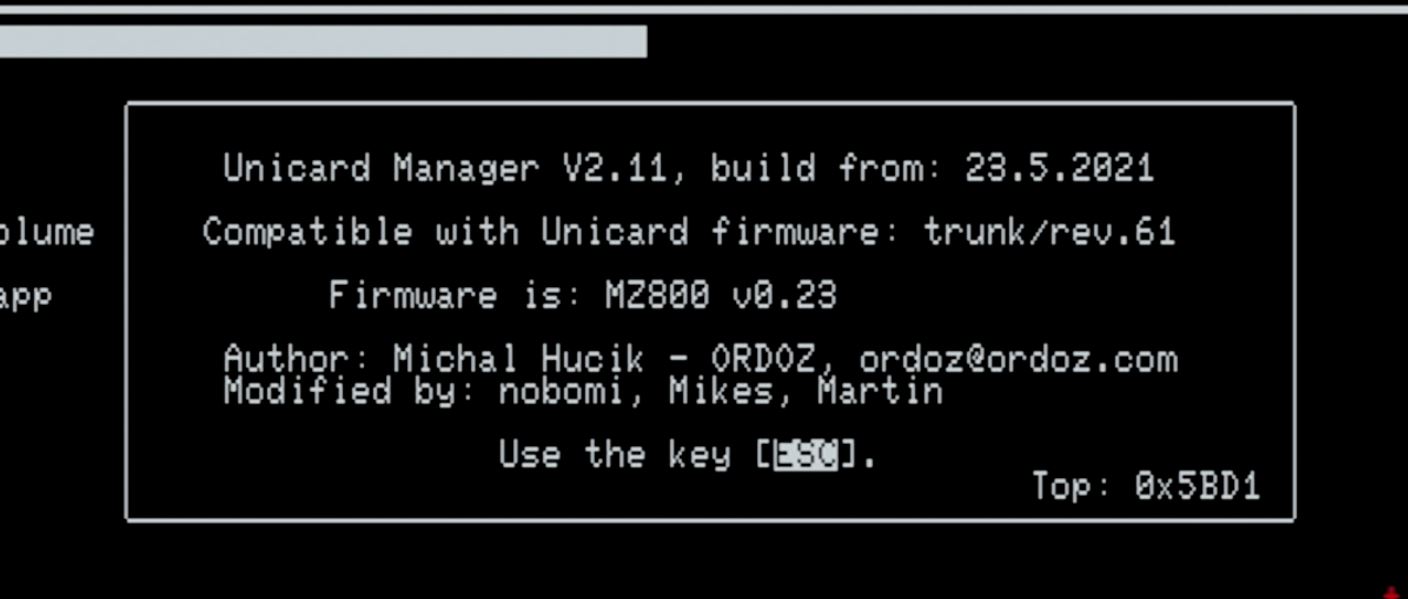
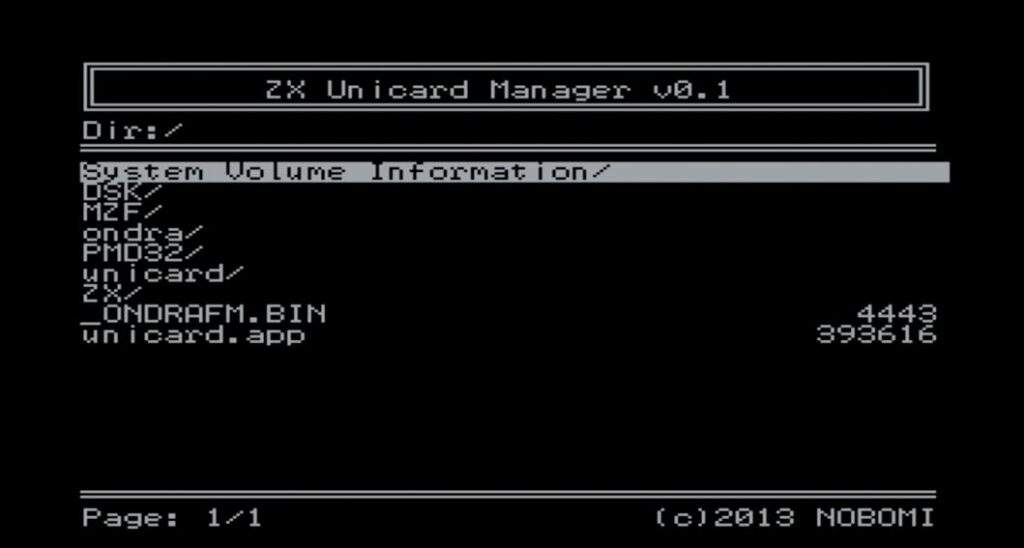
Unicard Manager – Central Control
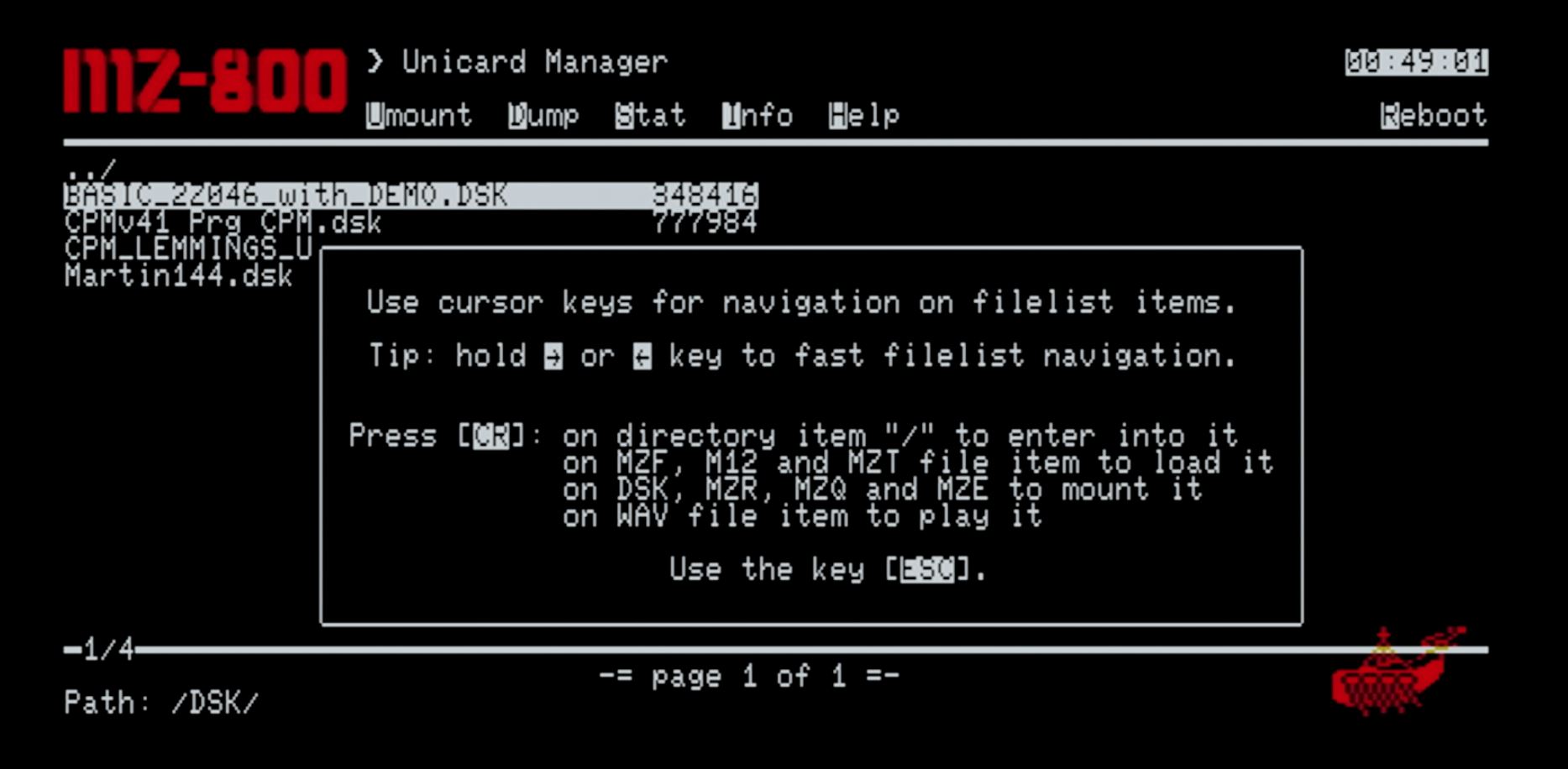
SD card management is handled via the Unicard Manager. Here, you can launch MZF and MZT programs and manage floppy disk, Quick Disk, and RAM disk images.
💡 Note: To ensure the time is displayed correctly, a CR2032 battery must be installed on the board.
Operation:
- The Unicard Manager starts automatically after switching on.
- Control using the arrow keys.
- If a disk or CP/M image is present in drive A, the system automatically boots from it after a reset.
- Access the Unicard Manager: Briefly press Reset + Q simultaneously.
- Start Monitor Mode: Reset + M.
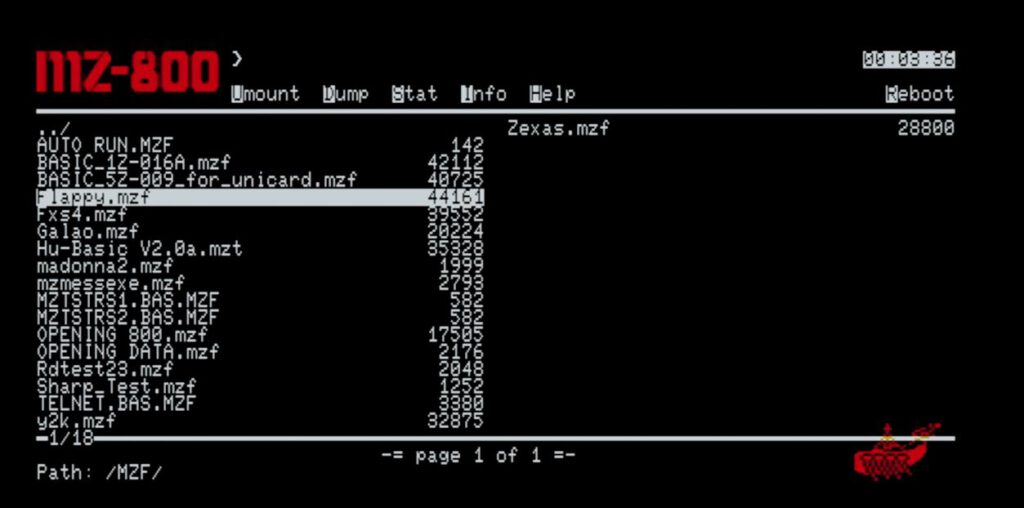
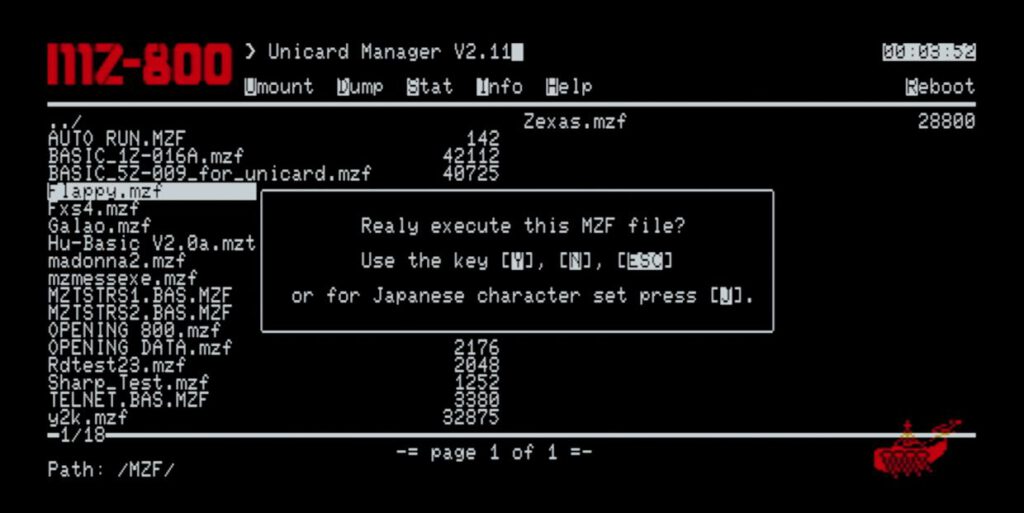
Loading files (MZF/MZT/M12)
When selecting a file, a prompt with Y/N/ESC appears (with J as an additional option on the MZ-800) to load the program or activate support for Japanese characters.
Mounting floppy disk and Quick Disk images
- Disk images (file extension: .dsk) are integrated via the Unicard Manager.
- Select the file → Press Enter → Assign drive A-D.
- With Taste U, you can check the drives or remove the assignment.
💾 The same procedure applies to:
- Quick-Disk (file extension: .mzq)
- RAM disk (file extension: .mzr)
- EMM Disk (file extension: .mze) (only one drive available at a time)
⚡ Quickly unmount the images: Press A, B, C, D, R, Q, and M.
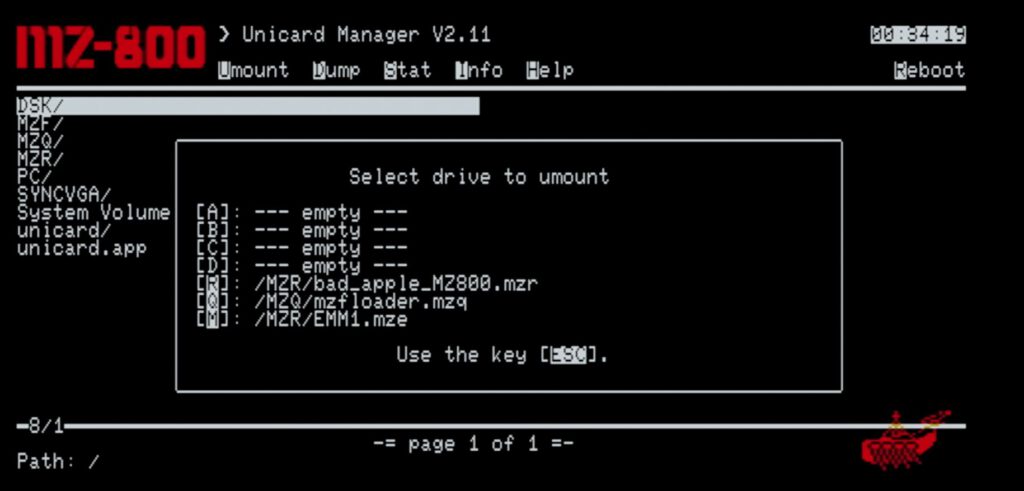
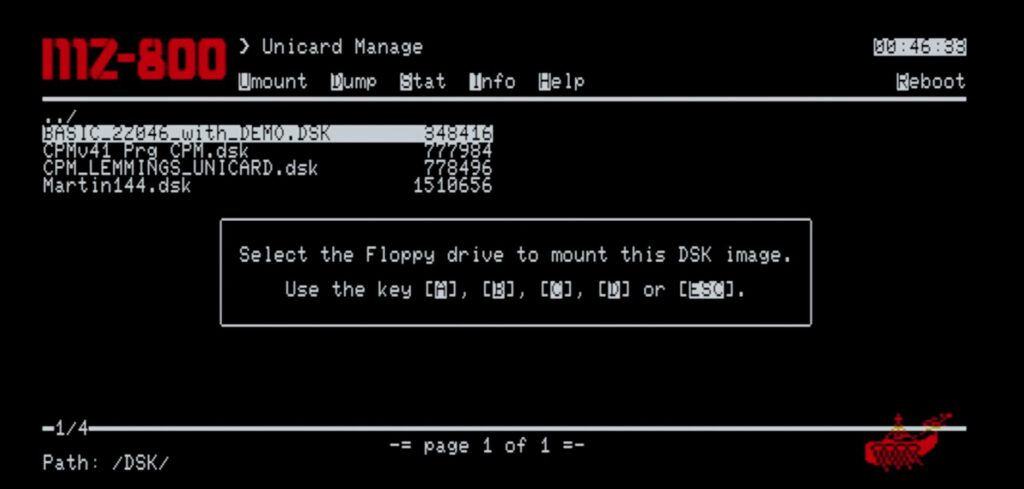
Basic & SD Card
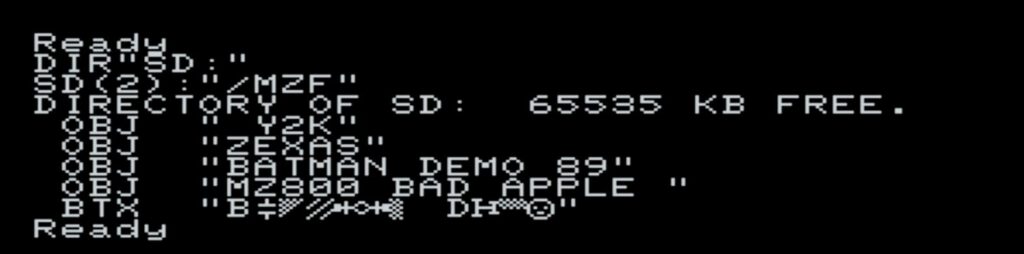
With a modified Basic version, the SD card is available as the device "SD:". This allows programs to be loaded and saved.
CP/M support
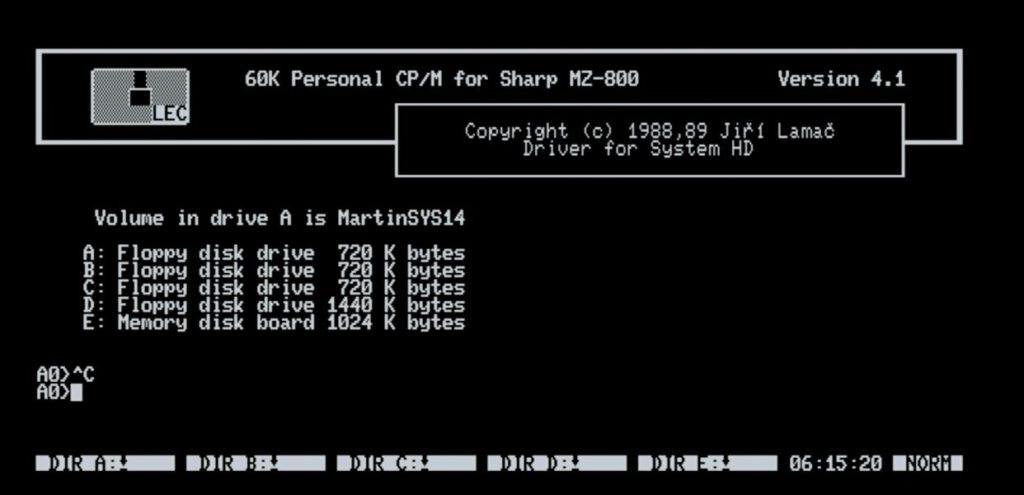
- Mount the CP/M boot disk and a utility disk.
- The utility disk allows you to copy data from the SD card to CP/M floppy disks.
Additional control keys
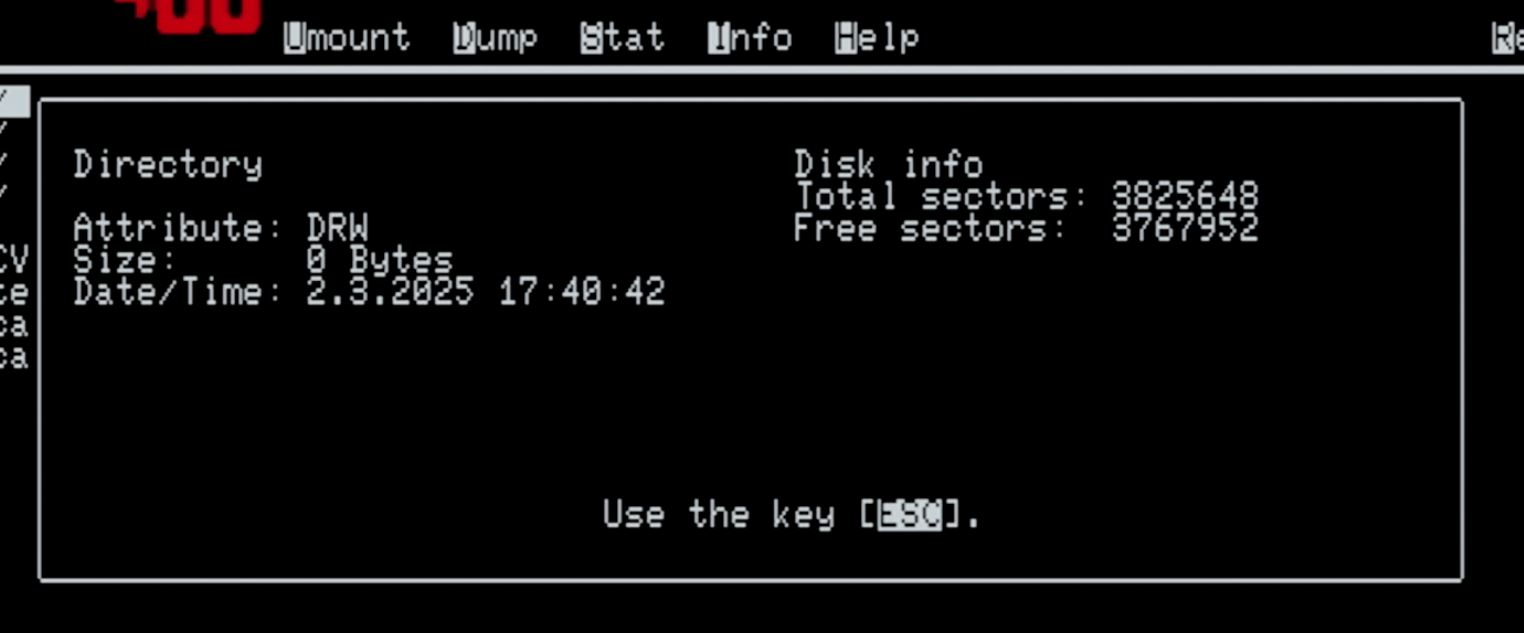
- I → Info screen
- H → Help
- R → Reboot
Special features
🛑 Disable booting from drive A: An empty file named "fd0disabled.cfg" prevents automatic startup from A:.
💿 Quick-Disk commands in Monitor/BASIC only work if an image is mounted.
📀 Multi-part programs on two floppy disks?
- Benennung der Images:
Image-A.MZQImage-B.MZQ
- Mount the first image → start → wait 3 seconds when switching before inserting the second diskette.
💾 Using RAM-Disk & EMM-Disk in BASIC:
- DIR "RAM" for RAM disk
- FILES "EMMo:" for EMM disk
Network functions
Network configuration is performed via the network.cfg file:
IPADDR=x.x.x.x
NETMASK=255.255.255.0
GATEWAY=x.x.x.x
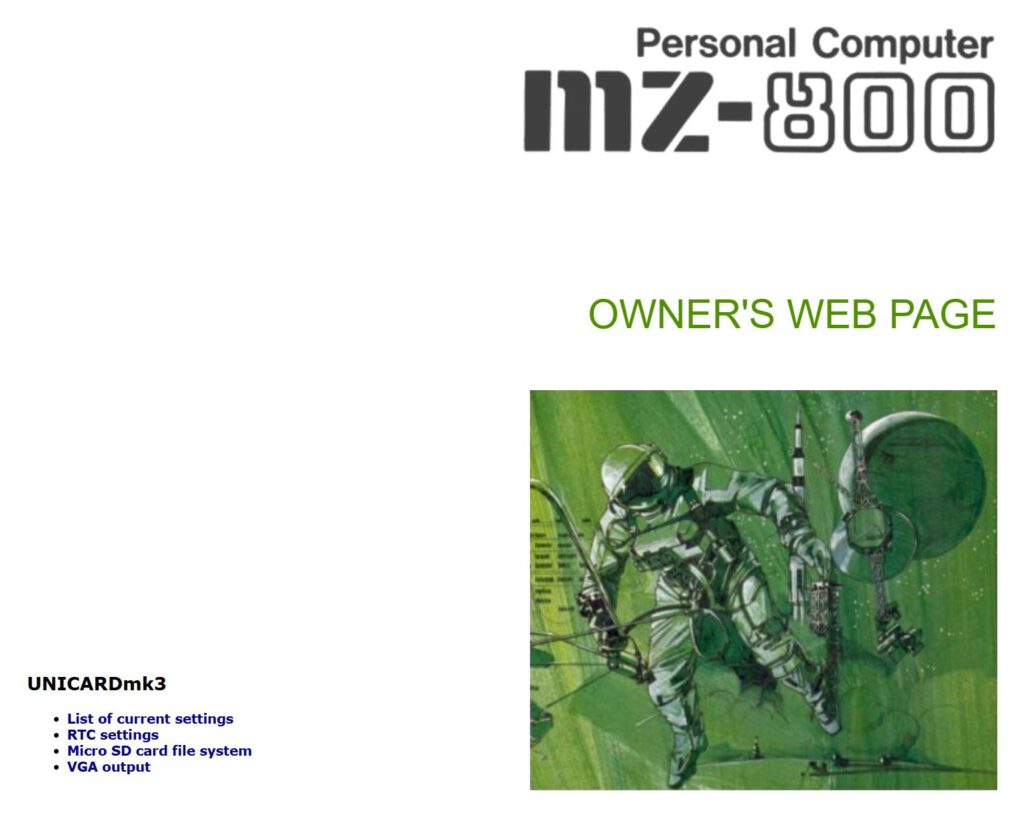
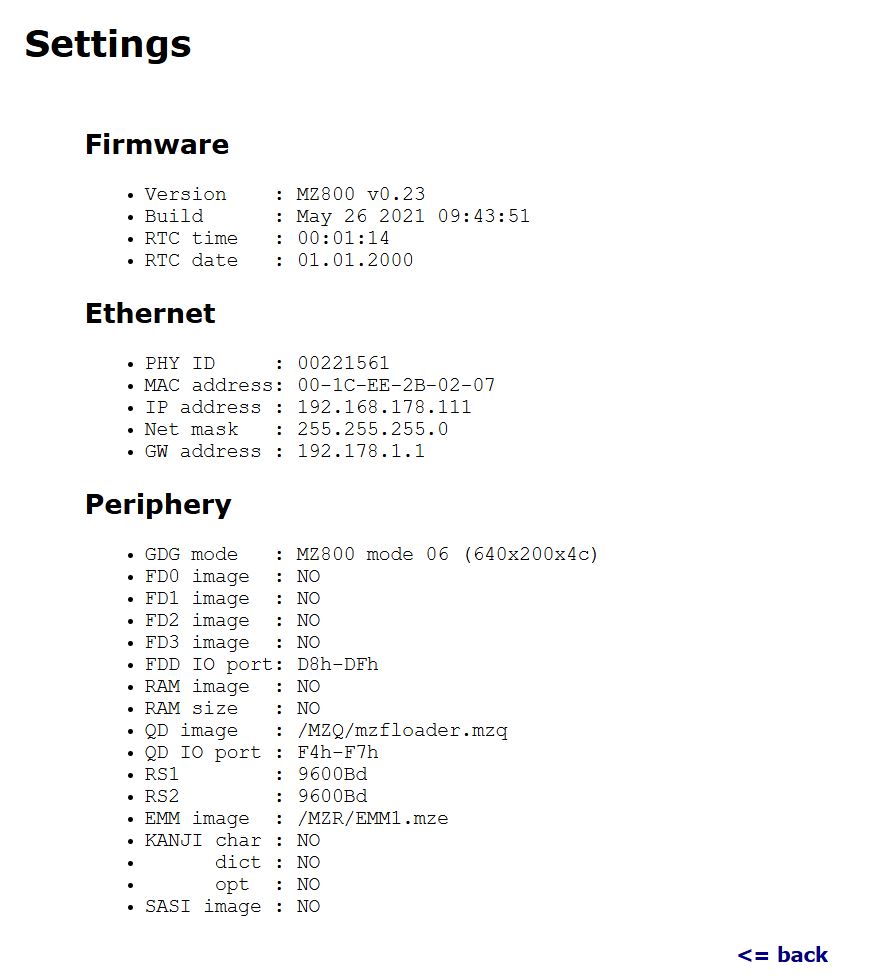
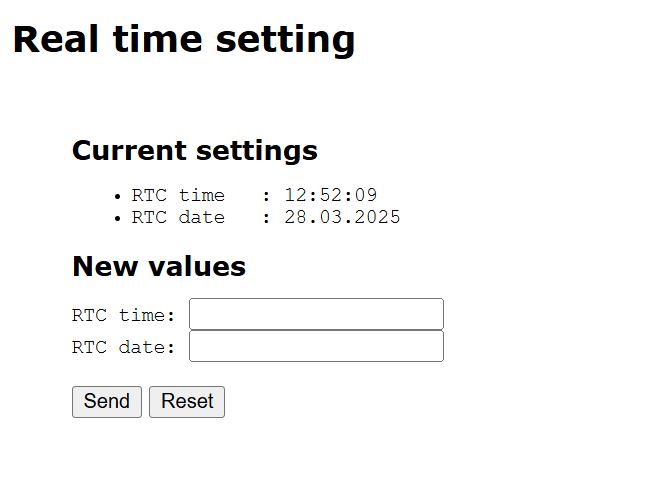
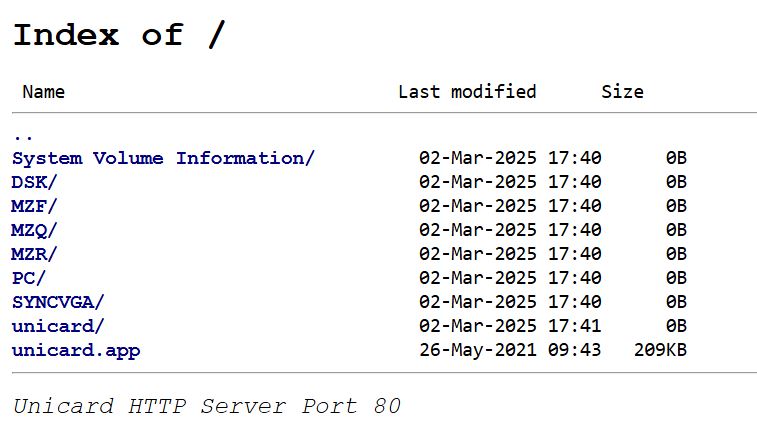
After connecting via a network cable, the settings and the contents of the SD card can be accessed via the integrated web server.
🖥 Functions via the web server:
- Displaying settings
- Manage SD card content
- Set real-time clock (RTC) (if battery is installed)
- Take a screenshot
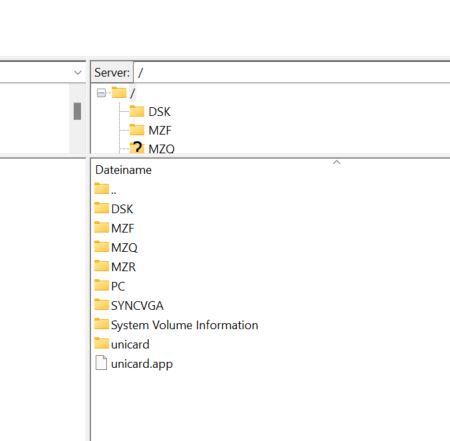
FTP access is also available – easily upload files using FileZilla. - FTP_NAME = unicard
- FTP_PASSWORD = unic1234
Alternative firmware: STMZ800
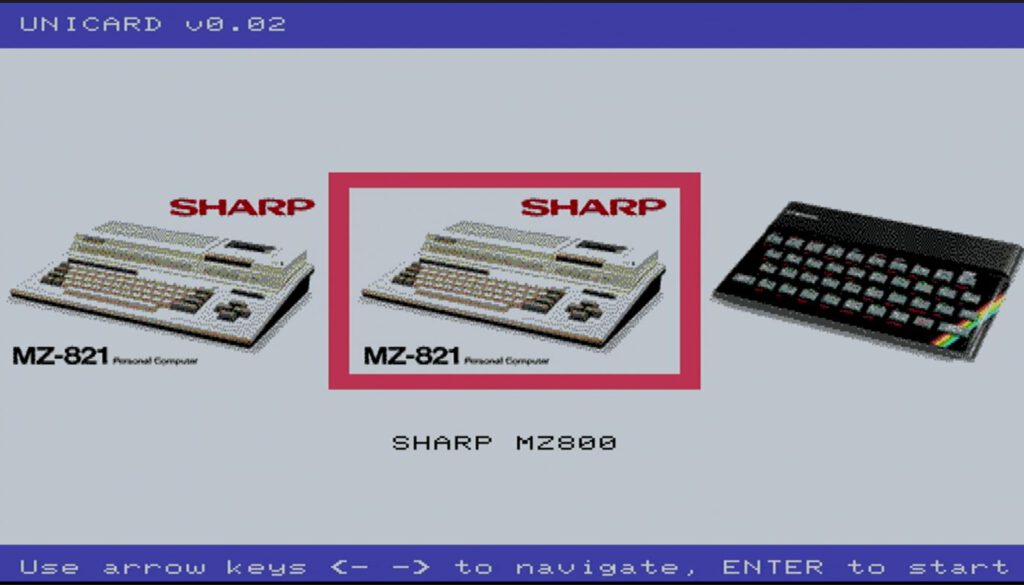
In addition to the original firmware, there is the STMZ800 firmware, which provides emulators for several computers:
ZX Spectrum 48K and 128K, PMD 85 + PMD32-SD, and ONDRA + Ondra-SD.
⚠ Note:
- Use a separate SD card for the STMZ800.
- The appropriate firmware must also be copied onto the "original" SD card.
This firmware does not offer all the possibilities of the original, but it is a nice “gimmick”. To make it a little easier to use, a few key combinations have been integrated:
Hold F1 and press F2 = Reset
Hold ALPHA +F1+F2 = computer selection
If a PS/2 keyboard is connected, hotkeys can even be used.
ZX Spectrum: *.SNA and *.Z80 files can be loaded.
PMD 85-3 with PMD32-SD: The PMD computers were manufactured by the Tesla conglomerate in Czechoslovakia between 1985 and 1994; their core component was a copy of the Intel 8080 CPU. Production of the PMD 85-3 began in 1988, and the system included routines for the PMD 32 floppy disk interface. The emulator boots into CP/M, and demo disks are included.
Ondra SPO 186: This is a Czechoslovak computer developed by Tesla in 1985 as an affordable school and home computer. It utilized the 4 MHz U880 CPU—an East German-produced clone of the Z80.
On the PMD computer, the original keyboard is emulated:
PMD * = Shift and +
PMD : = ;
Here is an article on the topic: ZX Spectrum 48/128, PMD 85 a Ondra na SHARP MZ-700/800 | Martinův 8-bitový blog
Firmware update
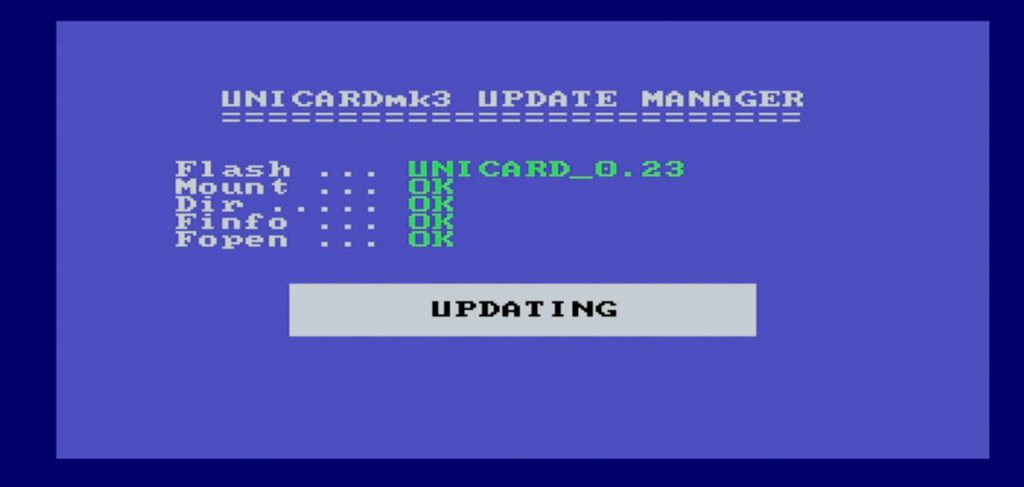
The update is incredibly simple:
- Copy the file to the SD card.
- Rename to unicard.app.
- After the computer is turned on, the update is executed automatically.
💡 Tip: The file can be deleted or kept after the update.
Standalone use without MZ hardware
💡 If the Unicard is powered by an external power supply and a PS/2 keyboard is connected, it can be used without a Sharp MZ!
Conclusion
The Unicard mk3b is an impressive expansion that adds entirely new functionality to the Sharp MZ-800 and MZ-1500. Features such as easy game loading, CP/M support, and numerous connectivity options make it a worthwhile investment for fans of classic Sharp computers.
The revised version is clearly structured, easier to read, and optimized for your blog. Just let me know if you’d like any further adjustments! 😊
Links
Sharp MZ-800 Unicard Mk3b – FDD, QD, RD, RS, RTC, LAN, VGA | Martins 8-Bit-Blog
Move SHARP MZ-800 Unicard with STMZ800 firmware from computer to computer while working
GitHub – mlukasek/QDTool: Simple tool to convert and edit SHARP MZ QuickDisk and tape files
![MZuiTape [Sharp MZ]](https://www.jungsi.de/blog/wp-content/uploads/MZuiTape-Oberseite-1.jpg)
![UniCMT [Sharp MZ]](https://www.jungsi.de/blog/wp-content/uploads/UniCMT-Vorderseite.jpg)
![Quick Disk (MZ-1F11) [Sharp MZ]](https://www.jungsi.de/blog/wp-content/uploads/Quick-Disk-Oberseite-1.jpg)
Moin, ich habe mir eine Unicard MZ-800 geleistet.
Frage: Wie kann ich die ohne einen MZ-800 nutzen?
Habe Netzteil und PS-2 Tastatur dran und auch eine SD-Karte mit den Demo-Dateien.
Gruss Olaf
Hallo Olaf,
ich habe es selbst nicht versucht. Ich weiss nur dass in dem Video, dass ich dazu gesehen habe und das in meinem Artikel am Schluss angezeigt wird,
die alternative Firmware STMZ800 verwendet wird und der Youtuber die Karte über den Mini-USB-Anschluss mit Strom versorgt. Ich wäre mit einem Test aber vorsichtig.
Evt. beim Verkäufer vorher mal nachfragen.
Viele Grüße
Jungsi
Hallo jungsi,
danke für Deine Antwort.
Ich dachte, das das Video von Dir war.
Ich werde das jetzt mal mit der anderen Software austesten.
Danke und Gruss
Olaf