

![The Spectrum [Retro Game Ltd]](https://www.jungsi.de/blog/wp-content/uploads/The-Spectrum-Oberseite.jpg)
The ZX Spectrum from Retro Games Ltd. – Nostalgia in its original size
This is likely the first mini-computer I’m covering on my blog—even though I own all the other devices in this category as well. Since the ZX Spectrum was the second computer I spent a lot of time with, I naturally couldn't ignore this emulator from Retro Games Ltd.
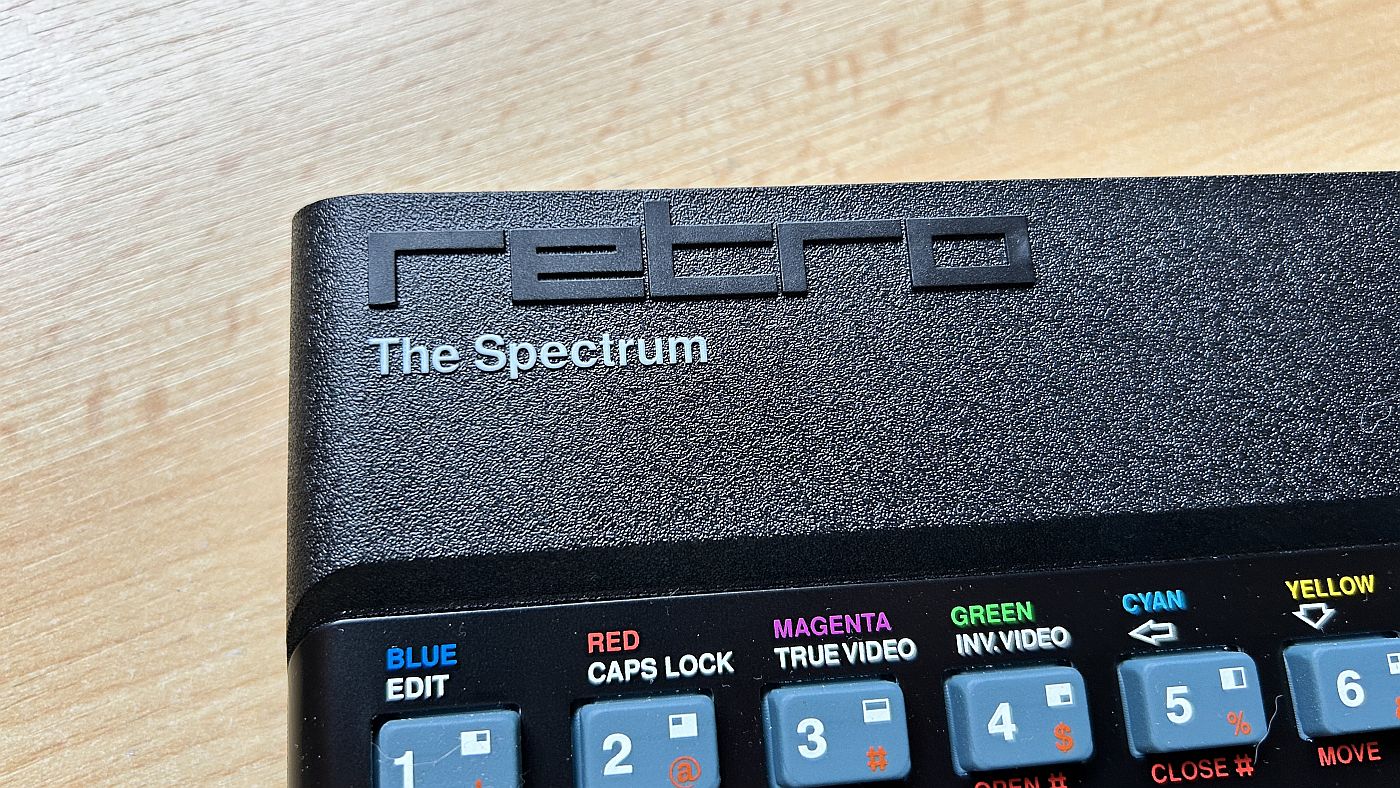
However, the term "mini" is actually a misnomer in this case, as "The Spectrum" shares the same dimensions as the original. Instead of the iconic "Sinclair" lettering, the casing bears the word "Retro." To give the computer a realistic weight, metal weights have been installed inside—a small yet effective detail.
Ports and design
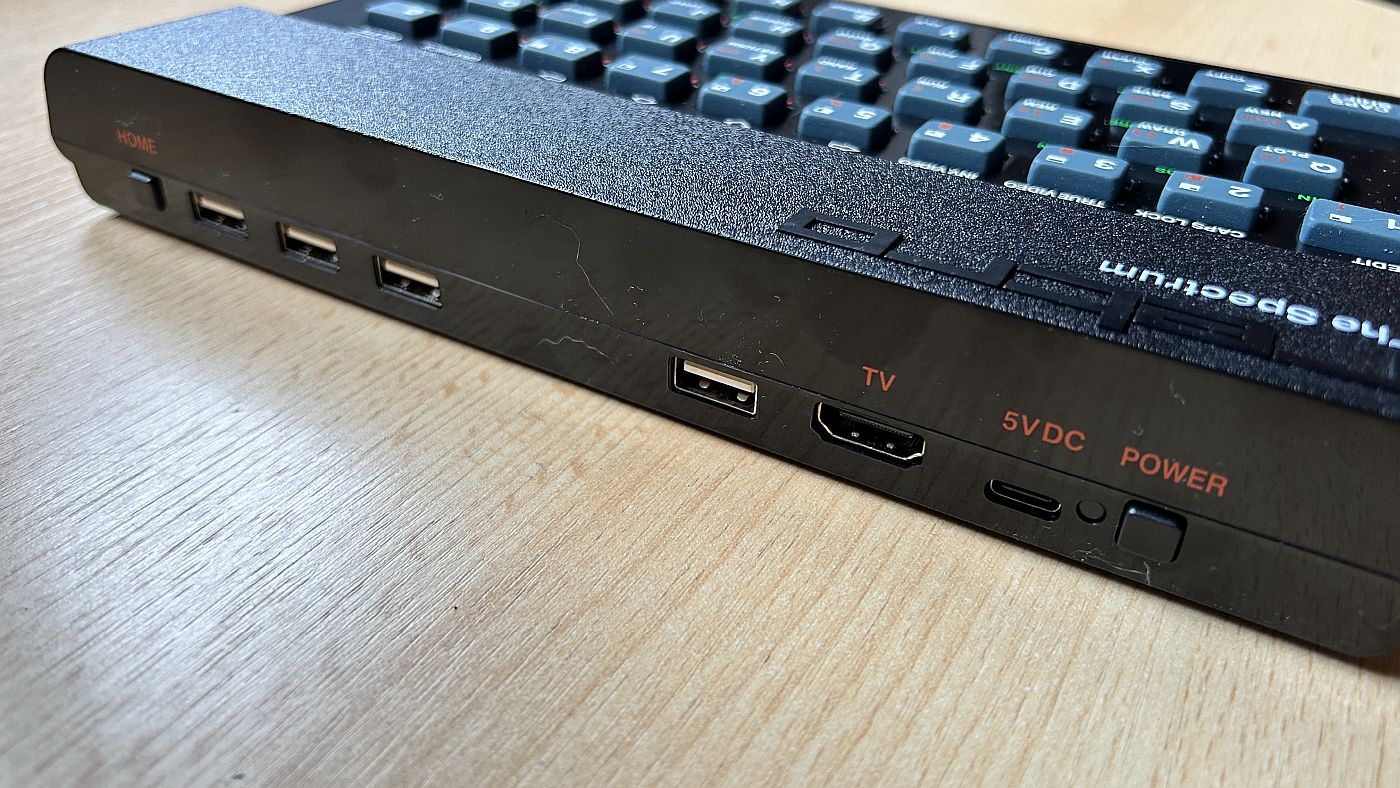
The back of the device features numerous ports adapted to modern requirements. The USB port for power supply, located on the left side, is particularly convenient; a power adapter of the type used for the Raspberry Pi is perfectly adequate here. Next to it are the HDMI output and a power switch, eliminating the need to constantly plug and unplug the power cable.
There are four USB ports that can be used for—among other things—USB drives (for loading games and ROMs) and controllers. On the far right is the Home button, which provides access to the game carousel and other system menus.
Game selection
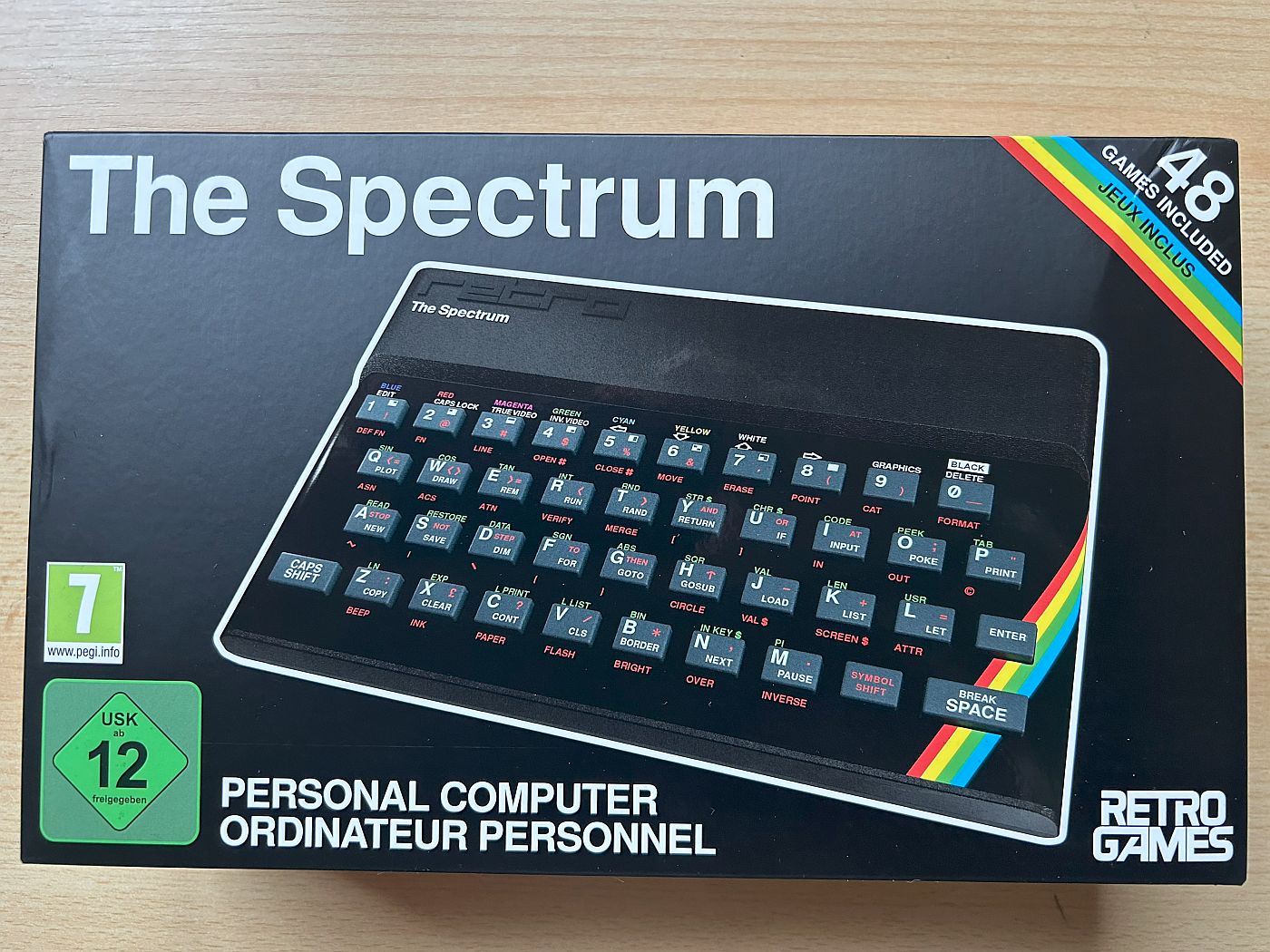
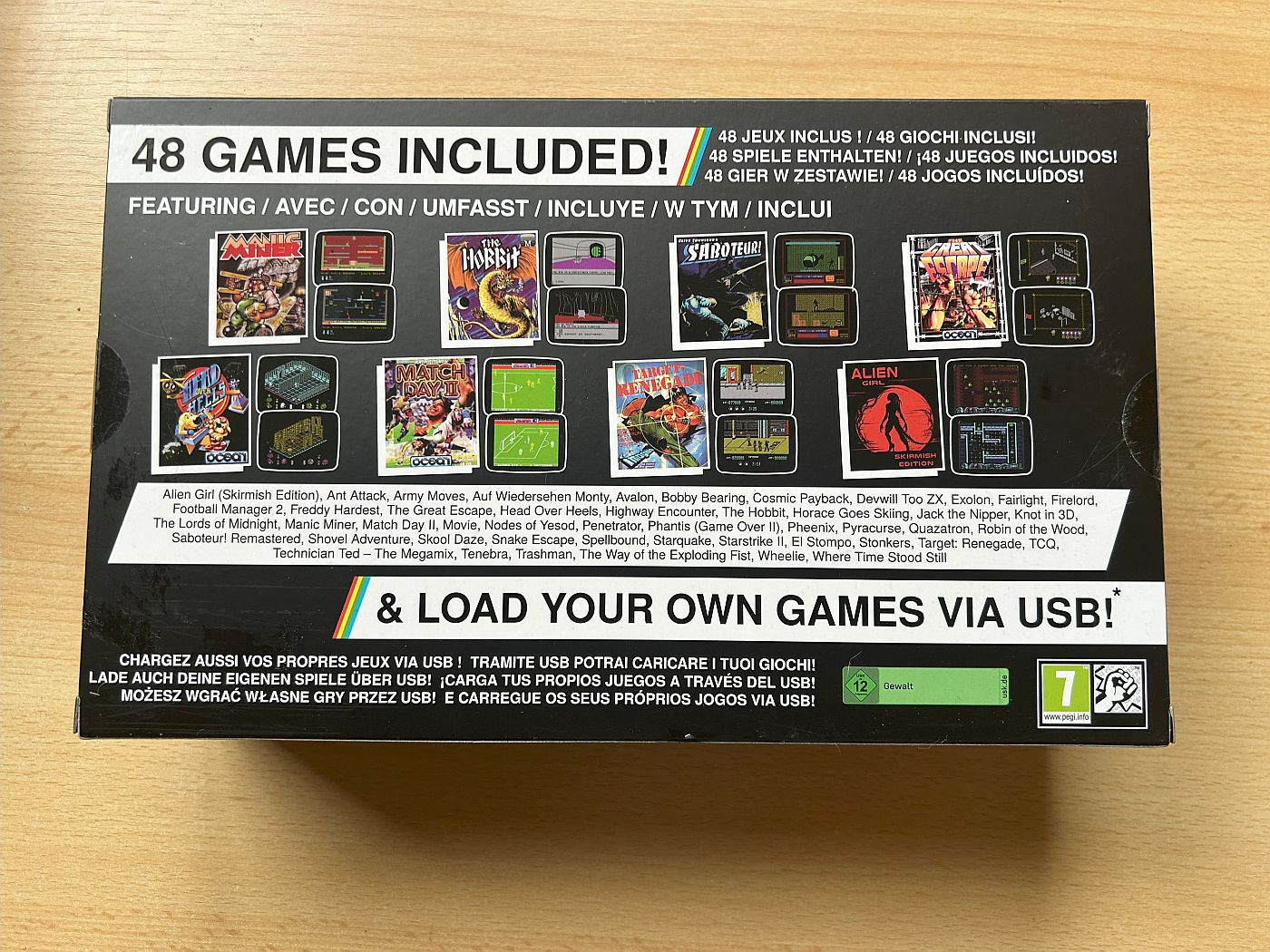
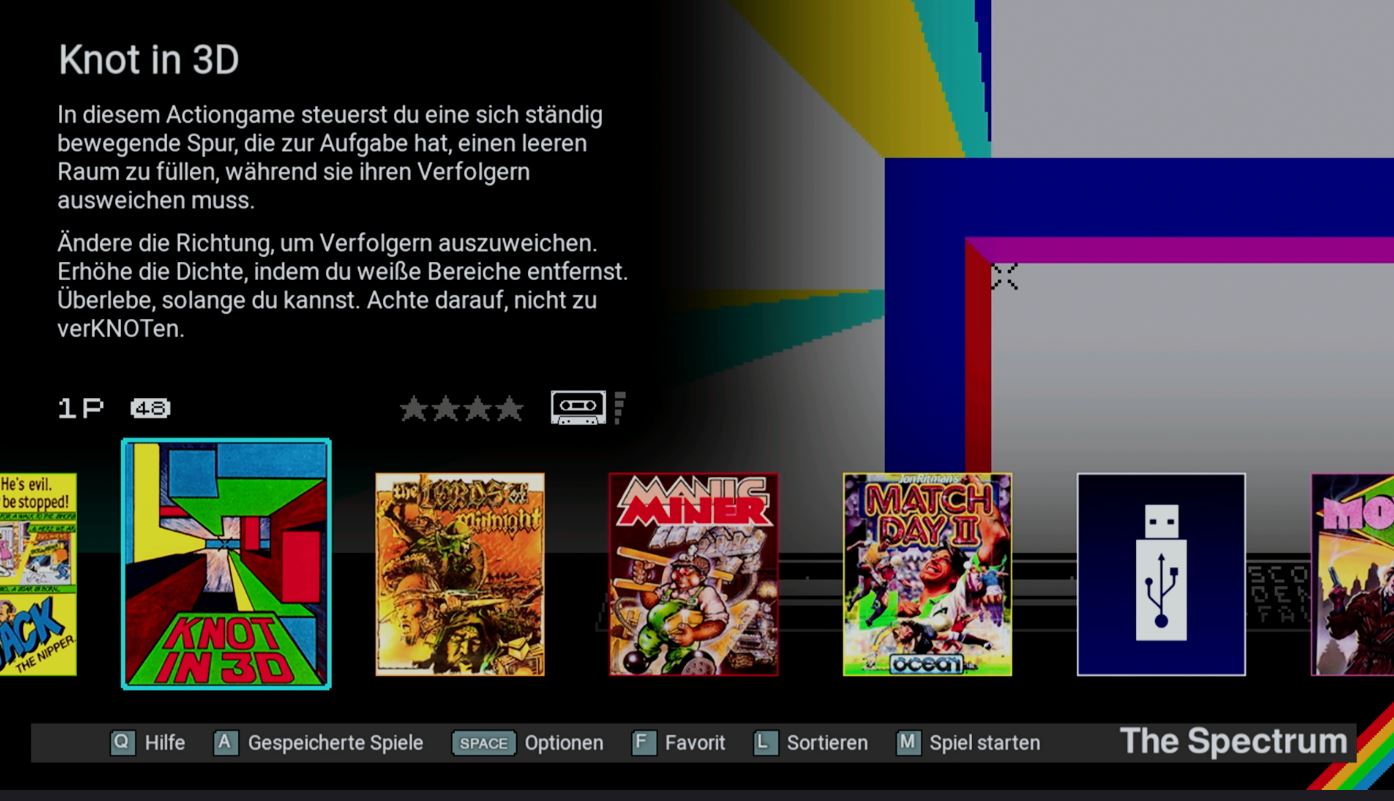
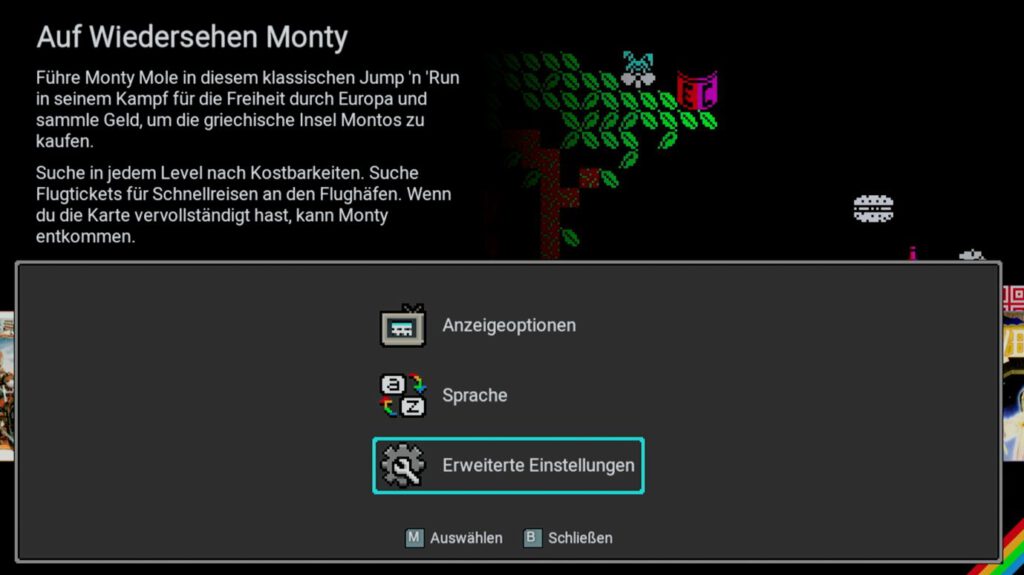
Upon powering up, a modern home screen appears, featuring a carousel of 48 pre-installed games. This selection ranges from classics such as The Lords of Midnight, Manic Miner, and The Hobbit to modern titles developed by the active Speccy fan community. Highlights include the top-down sci-fi blaster Alien Girl: Skirmish Edition and the charming tomb-raiding game Shovel Adventure.
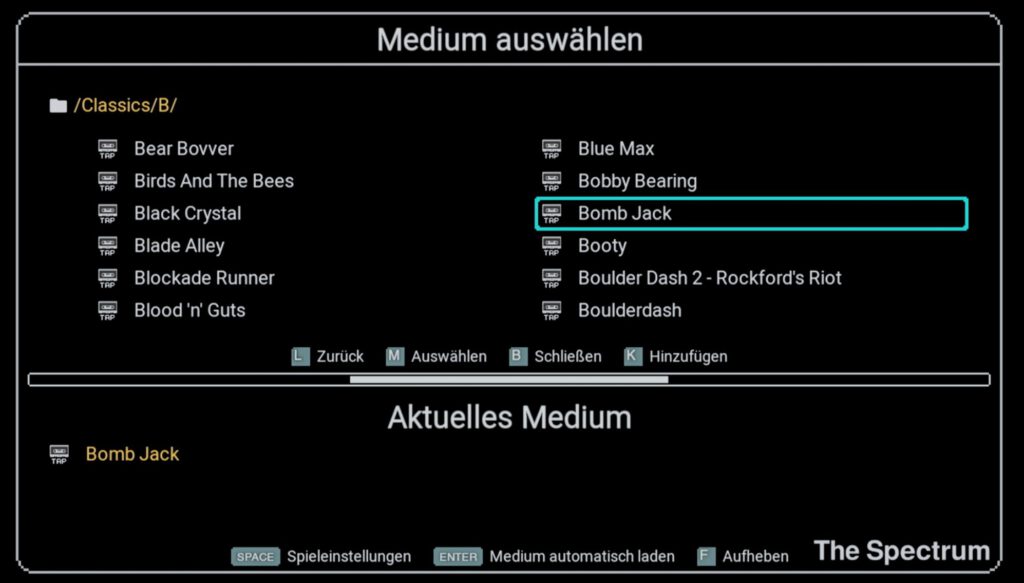
If the built-in selection of games is not enough, Spectrum ROMs can be loaded via a USB drive. However, caution is advised here: many ROMs are protected by copyright, and the legality of downloading them can be questionable. Nevertheless, trusted sources such as World of Computing and Spectrum Computing offer archives containing royalty-free games.
One minor drawback: the ROM used is not a Sinclair/Amstrad ROM, which can lead to compatibility issues. However, this can be remedied by placing the original ROM in a specific folder on the USB drive.
The corresponding folder on the USB drive must be named THESPECTRUM\ROMS
The filenames for the ROMs are:
16K / 48K: 48.rom (a single 16K ROM)
128K: 128-0.rom and 128-1.rom (two 16K ROMs)
+2A: plus3-0.rom + plus3-1.rom + plus3-2.rom + plus3-3.rom (four 16K ROMs)
Keyboard
The keyboard is a key feature of this emulator—and it works! The typing feel is reminiscent of the original, even if it is a bit mushy. The key-click sound can be toggled on or off as desired. A particular plus is that typing BASIC programs is effortless—a clear advantage over PC emulators, where you first have to get used to an unfamiliar keyboard layout.
Nevertheless, there are slight deviations: the lettering on and around the keys differs slightly from the original, presumably to avoid issues with rights holders. In addition, the keys are marginally smaller (approx. 0.3 mm), though this is negligible.
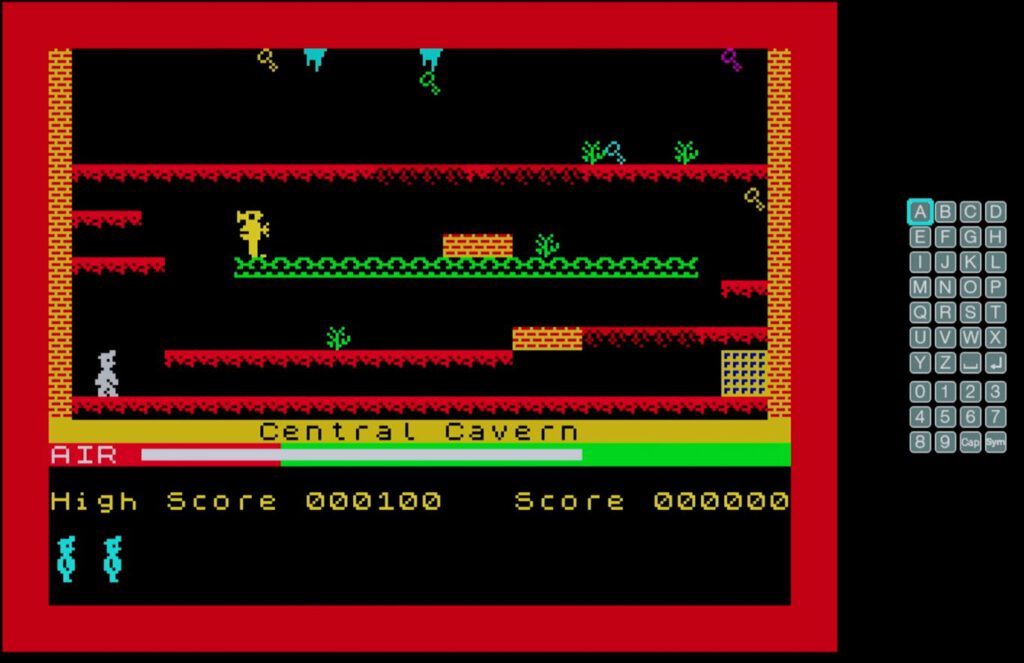
During a game, a virtual keyboard can be displayed on the right side of the screen by pressing HOME + MENU (on the game controller).
Joystick support
Der Emulator unterstützt zwei USB-Controller, die sich individuell konfigurieren lassen. Theoretisch sollten alle USB-Joysticks und -Gamepads kompatibel sein. Lag ist kaum spürbar – was angesichts der ohnehin etwas ruckeligen Darstellung des ZX Spectrum keine große Rolle spielt.
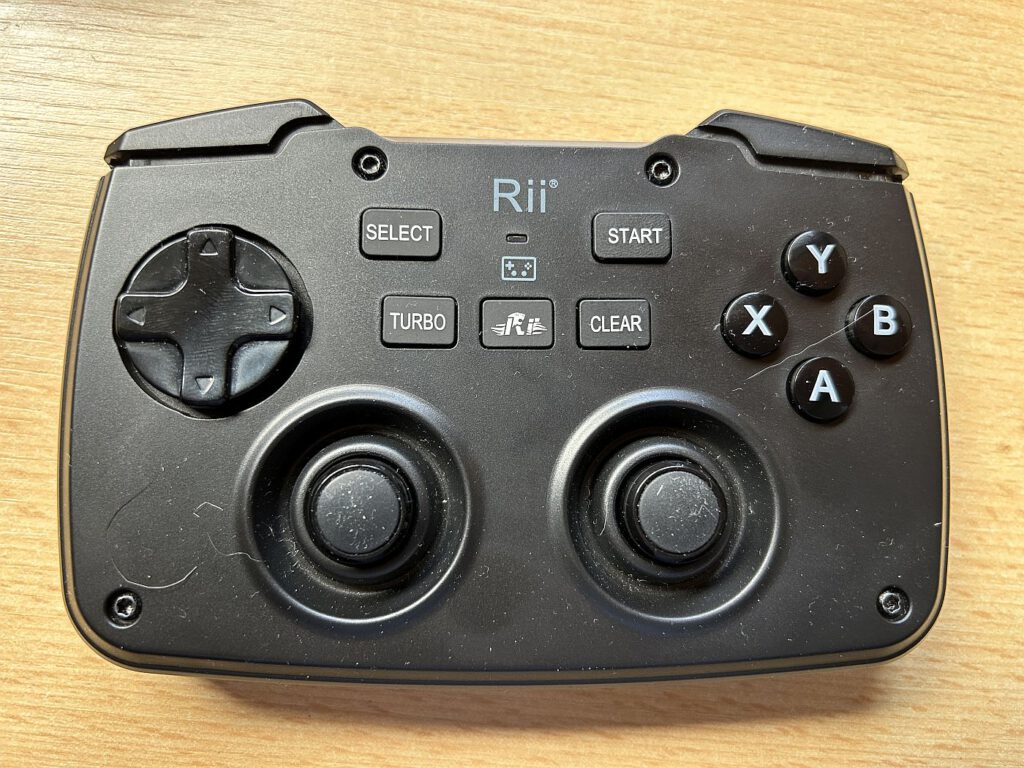
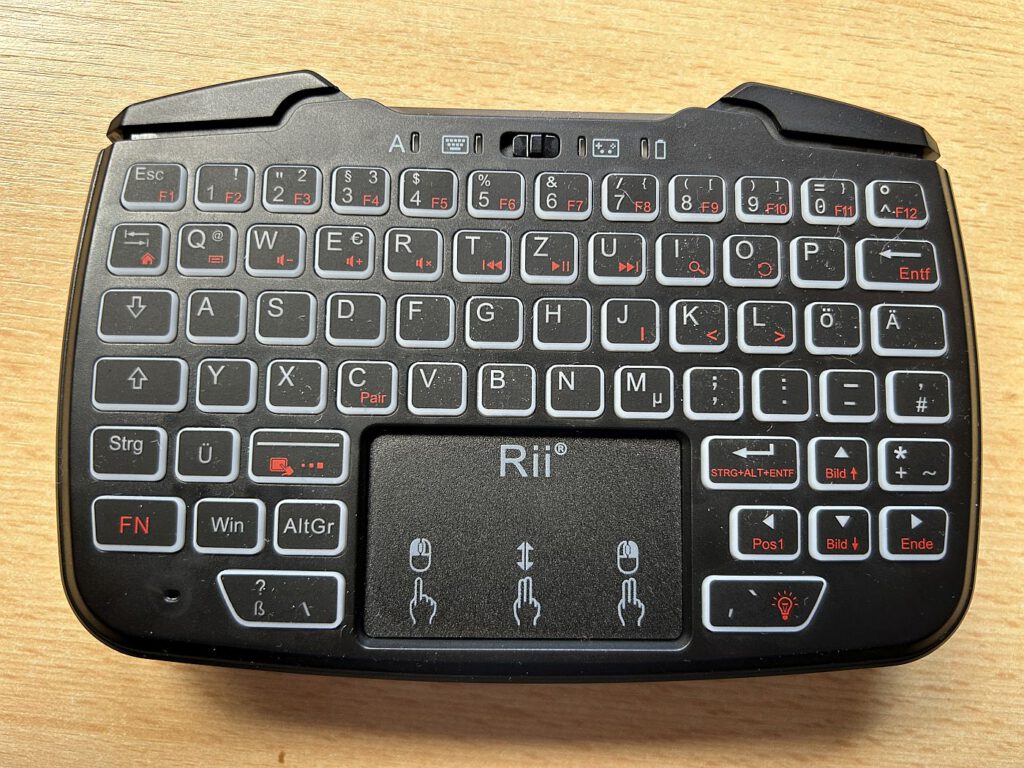
Ich verwende einen Rii Gaming Controller, der auf einer Seite ein „normaler“ Controller ist und auf der anderen Seite eine kleine Tastatur und ein Mauspad bietet. Zwischen beiden kann umgeschaltet werden und somit ist es auch möglich, ein Adventure mit dem Controller zu spielen.
Video and audio
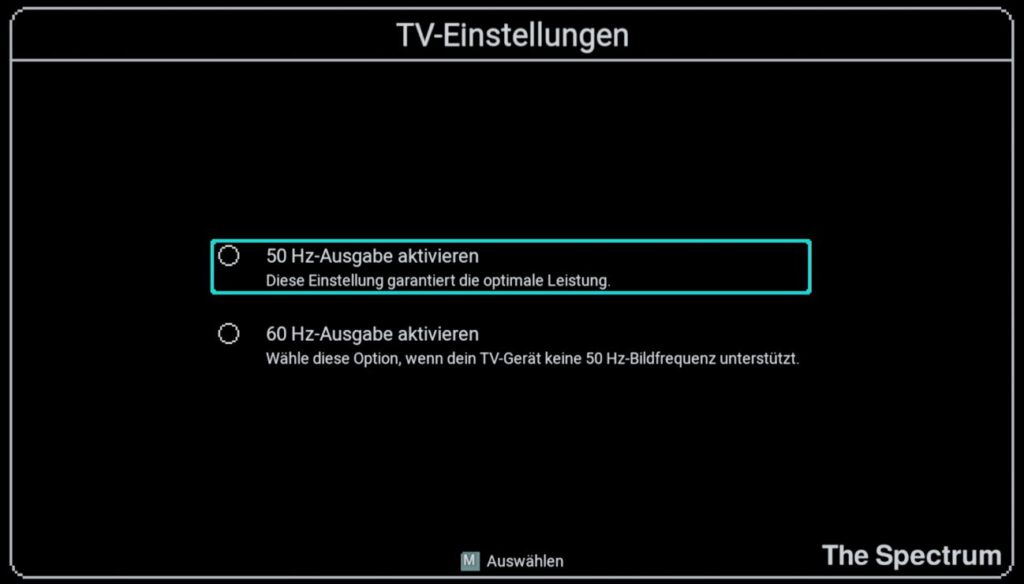
When the device is started for the first time, the user is prompted to choose between a refresh rate of 50 Hz and 60 Hz. The display is scaled accordingly and is free of interference patterns or moiré effects. The smooth rendering of horizontal scrolling is particularly impressive—an important factor for demos and games.
If the output is not via HDMI, an HDMI-to-VGA adapter with a 3.5 mm audio splitter, for example, is required.
System and Features
Games can be loaded from a USB drive formatted in FAT32. Important: The number of files in a folder should not exceed 256. In any case, rather than having thousands of games, I recommend focusing on a personal selection. The following file types are supported:
- Kassette: .tap .tzx .pzx
- Cartridge: .rom
- Snapshot: .szx .z80 .sna
- Playlist: .m3u
The emulator remains faithful to the technical limitations of the original—games run at the typical 3.5 MHz. There is no acceleration function, though the device does offer a handy rewind feature.
A particularly nice touch: before starting, each game displays the original’s illustrated loading screen—a nostalgic moment that evokes memories of waiting for the game to load.
If a game has been started and is paused using the HOME button, a small icon appears in the top-right corner of the screen. You can resume the game at any time by pressing Enter, provided no other game has been started in the meantime.
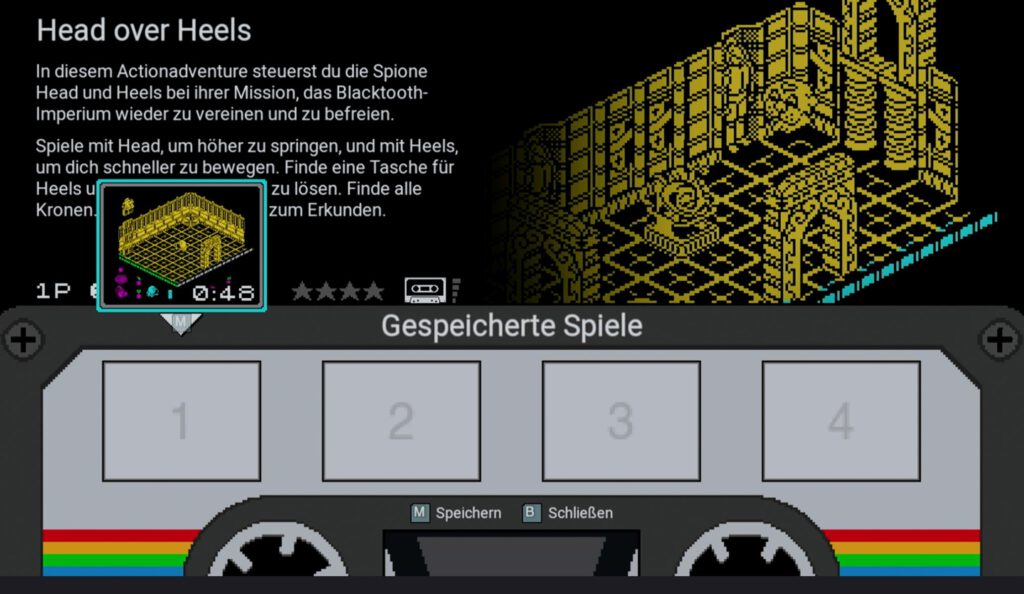
While a game is paused, you can also assign it to a save slot by pressing A, allowing you to resume it later from that specific point.
Classic Mode
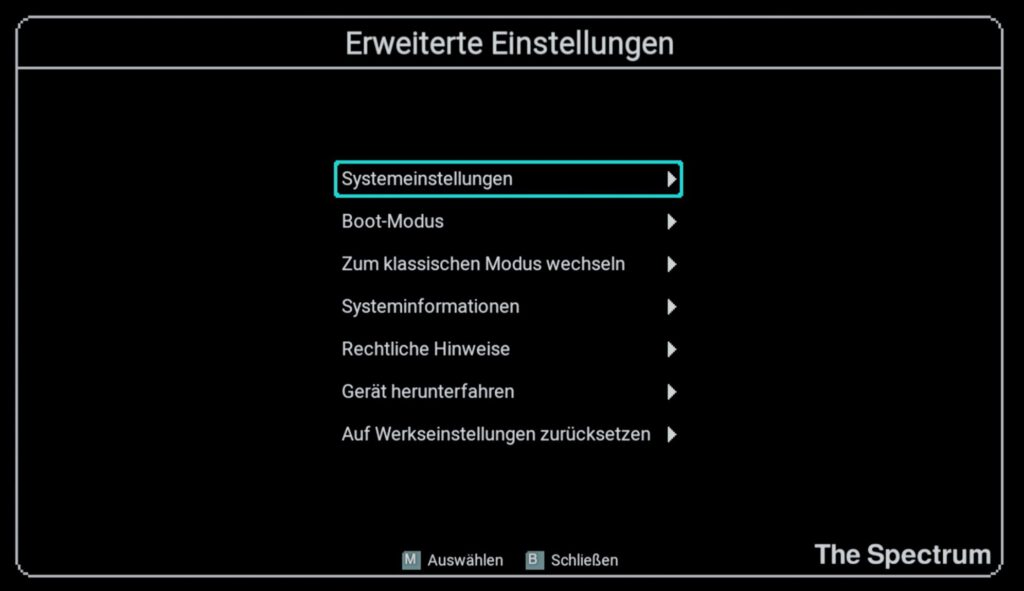
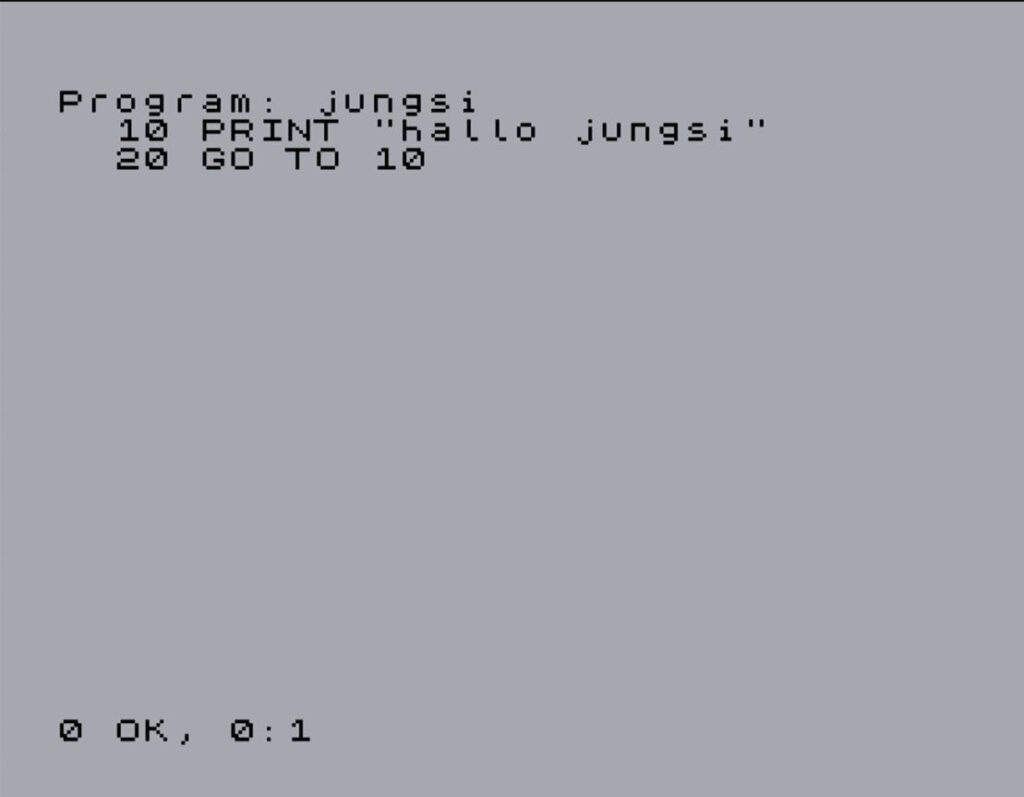
Es kann auch ein klassischer Modus gestartet werden (→ Menü → erweiterte Einstellungen → klassischer Modus, der den normalen Startbildschirm des ZX Spectrum anzeigt. Hier ist es möglich, ganz normal ein Programm einzugeben und dieses zu laden und zu speichern (USB-Stick nötig). Wird ein Programm z. B. mit SAVE „Spiel“ gesichert, wird auf dem USB-Stick eine Datei mit dem Namen „Spiel_WR“ erstellt. Das ist eine TAP-Datei und WR bedeutet, dass sie writbable (schreibbar) ist. Diese kann später wieder geladen werden – dazu die Datei bei den Medien auswählen und einfach starten oder den klassischen Modus starten und mit LOAD““ laden.
THE MICRODRIVE
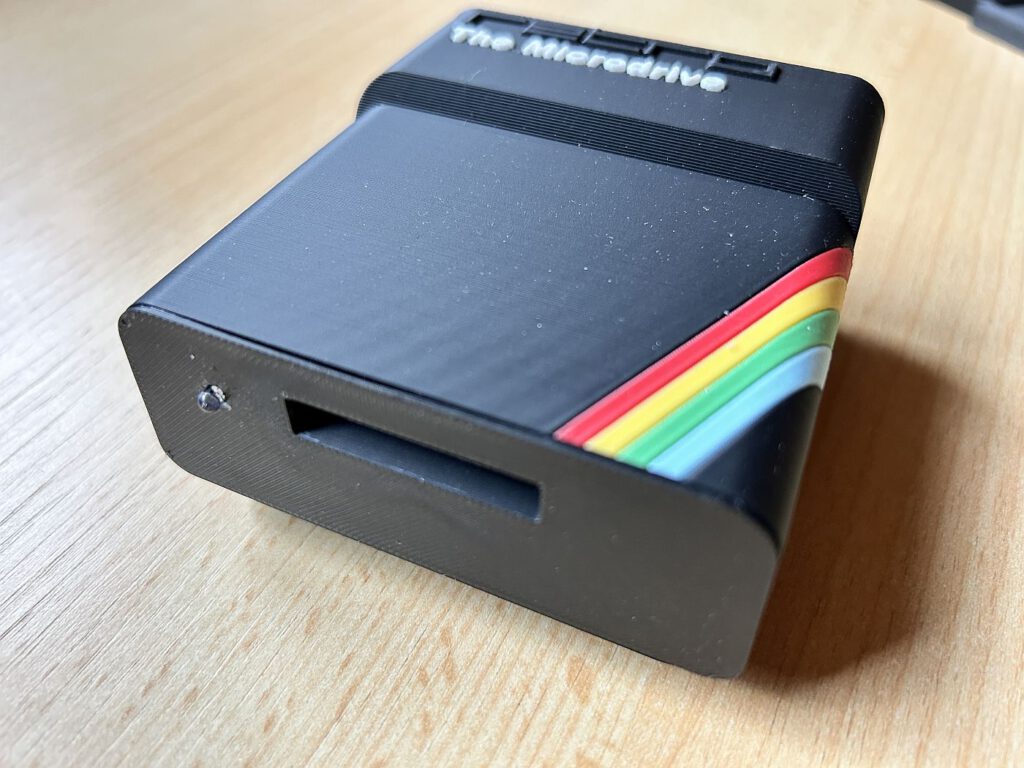
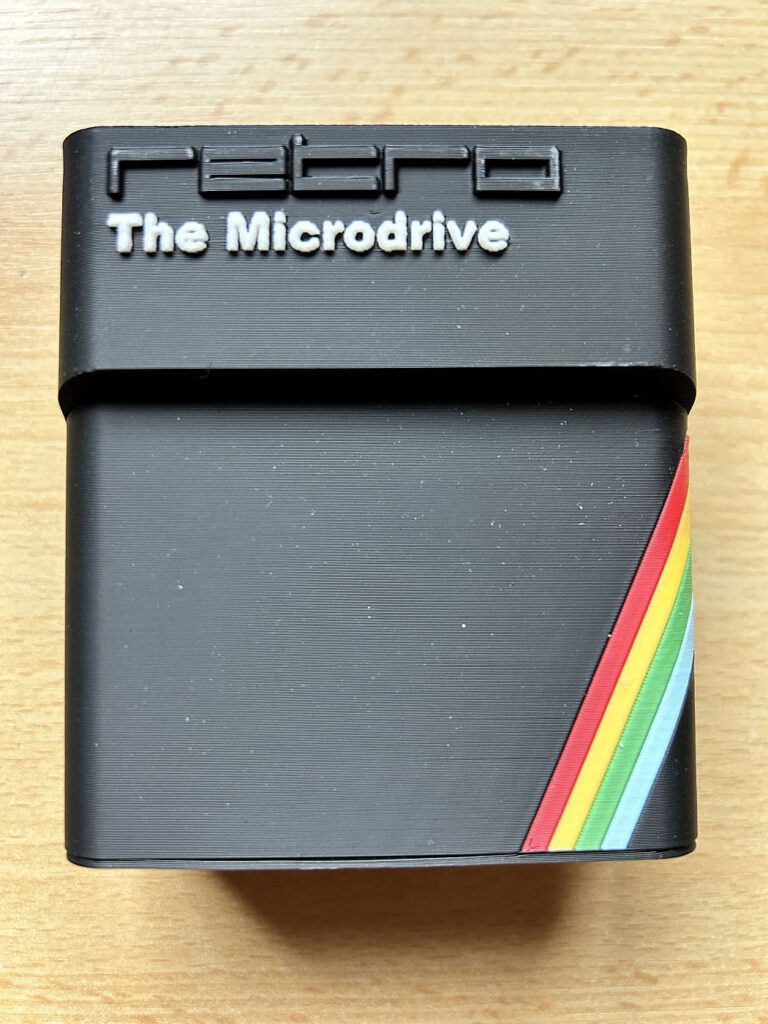
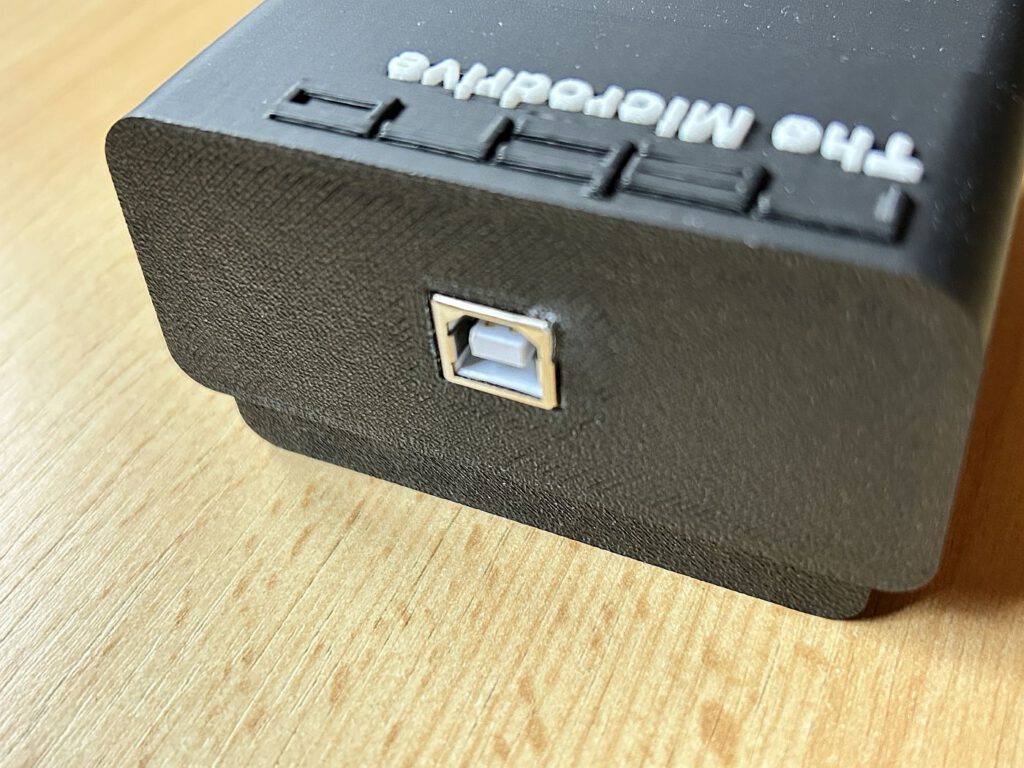
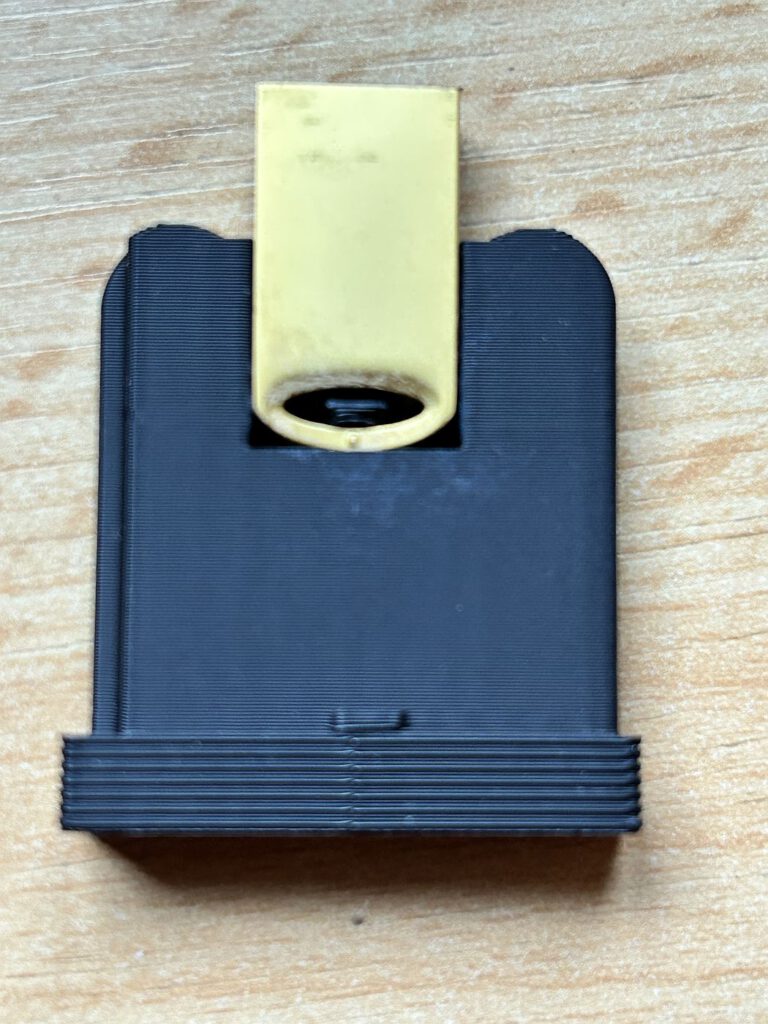
Shortly after THE Spectrum hit the market, the community began designing accessories for the device. A particular highlight is THE MICRODRIVE by Ronny Simpson from England. The design of this USB reader mirrors Sinclair’s original Microdrive, as does the USB drive itself, which resembles a Microdrive cartridge. The included USB cable is quite short, meaning the device can only be positioned on the left side of THE Spectrum. An LED on the front changes color depending on usage. Since something inside the unit was loose upon the initial delivery, it had to be replaced. Kudos to Ronny for the excellent support.
Firmware update
Retro Game Ltd. regularly releases firmware updates for its products. At the time of writing, version 1.0.3 is the current release, addressing several initial bugs. Performing the update is straightforward, though there are a few details to keep in mind. It is important to use a proper power adapter providing at least 2 amperes; do not power THE SPECTRUM via a TV's USB port, for example. Additionally, the USB drive should be plugged into the port directly next to the HDMI connector rather than into a USB hub, and a second controller should not be connected.
The update can be downloaded from the relevant website and copied onto a USB drive. Once everything is prepared, navigate to Menu → Options → Advanced Options → System Information. The rest is self-explanatory.
Conclusion
"The Spectrum" is a fantastic device for anyone who grew up with the ZX Spectrum. Sure, there are free emulators available online—but nothing beats the feeling of holding a reproduction of the original in your hands. The legendary rubber keys, the authentic design, and the chance to experience classic games in their original form make this emulator a must-have for retro fans.
Links
The Spectrum review – a tactile trip to the 1980s | Games | The Guardian
Review: The Spectrum is a brilliant way to relive or discover an icon of British gaming history | VGC
Update The Spectrum firmware
PS5 Pro And Xbox Series X|S Outsold By ZX Spectrum This November In Spain
![Sinclair Cores [MIST]](https://www.jungsi.de/blog/wp-content/uploads/2013/09/MIST-Vorderseite.jpg)
![ZX Spectrum NEXT Tips&Tricks [Sinclair]](https://www.jungsi.de/blog/wp-content/uploads/ZX-Spectrum-NEXT.jpg)
![ZX Harrier [ZX Spectrum Next]](https://www.jungsi.de/blog/wp-content/uploads/ZX-Harrier-Instructions.jpg)
Hallo, ich bin mit meinen beiden Söhnen ebenfalls ein happy-spectrum-Begeisterter aus den 80iger Jahren (bin ja schon 87 Jahre jung) und meine Söhne, die weit weg wohnen, haben mir thespctrum geschenkt. Ich habe mir einen 15“ usb c Monitor gekauft, der leider mit hdmi nur flackernde Doppelbilder liefert. An anderen Pc läuft der Monitor ok. Kann ich am thespctrum die Anpassung vornehmen? An den verfügbaren Einstellungen ist es mir nicht gelungen.
Viele Grüße
Harald
Hallo Harald, ich freue mich, dass Du immer noch aktiv bist. Ich verwende auch oft einen kleine Monitor mit The Spectrum, der aber einen „normalen“ HDMI-Anschluss hat und ohne Probleme funktioniert.
Du steckst den Monitor an der HDMI-Buchse des The Spectrum an und am Monitor dann mit USB-C? Der Monitor hat nur USB-C?