

![Amstrad NC100 [Amstrad]](https://www.jungsi.de/blog/wp-content/uploads/Amstrad-NC100.jpg)
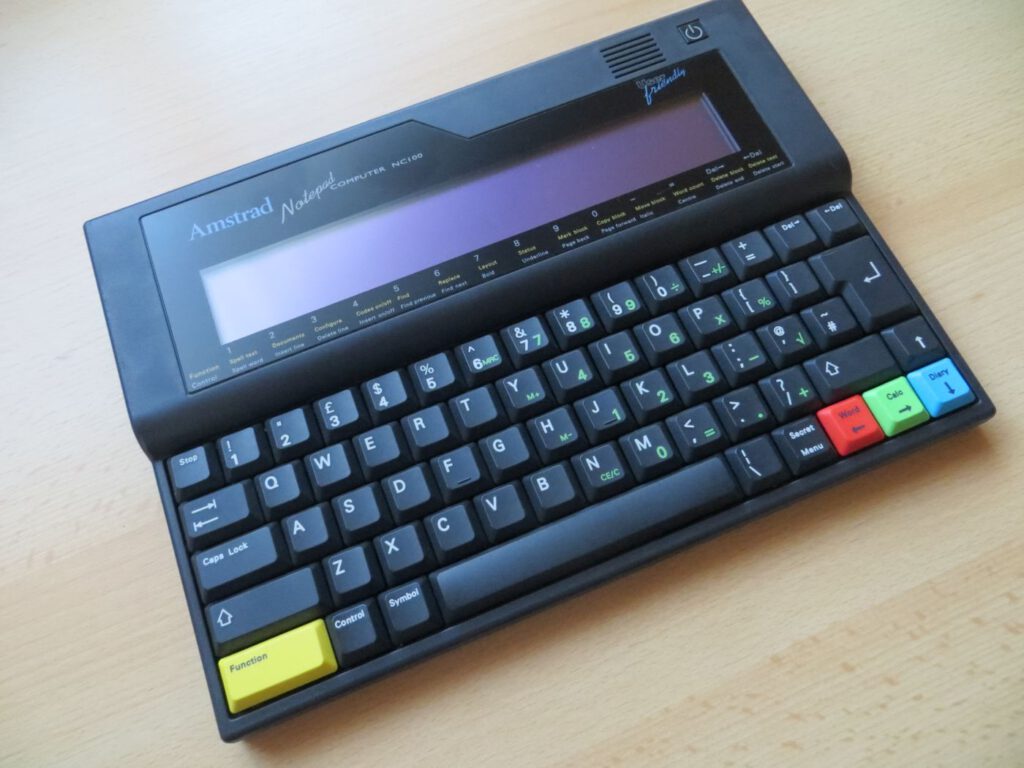
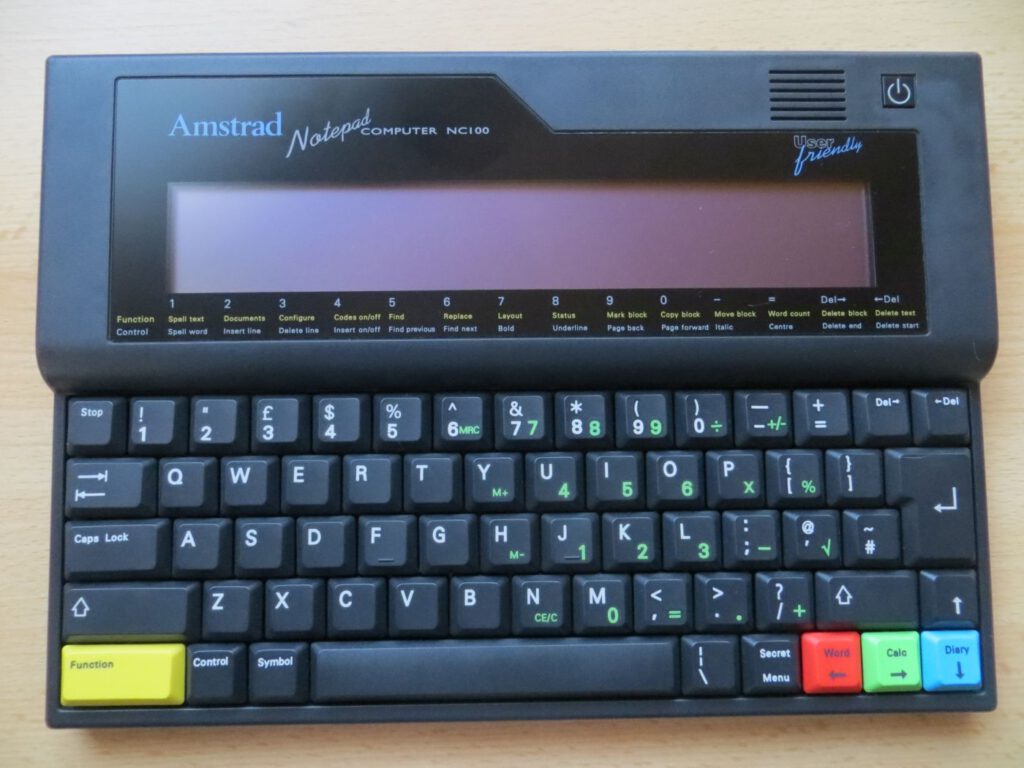
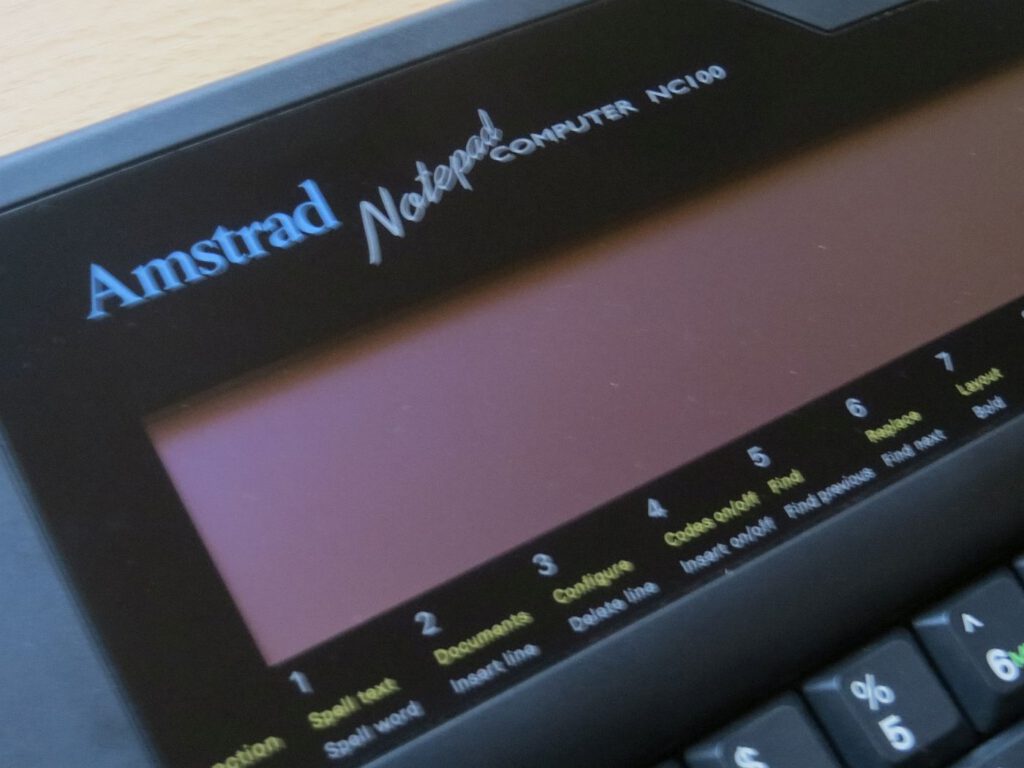
Amstrad, best known for the Amstrad CPC, introduced the NC100 in 1992. In the same year, the industry leader IBM also launched its ThinkPad laptop range. The Amstrad NC100, however, stood out for its compact size – that of an A4 sheet of paper – weighed just 1 kg and could be powered by standard batteries.
The LCD display is legible even in bright sunlight, despite the lack of a backlight. The device features a large typewriter-style keyboard. The computer is powered by a Z80 CPU, similar to that found in the Schneider CPC and Sinclair ZX Spectrum, with a clock speed of 4 MHz and 64 KB of memory. The 256 KB ROM contains the Protext word processor, a diary, an address book, a calendar, a simple calculator and a version of the BBC Basic interpreter.
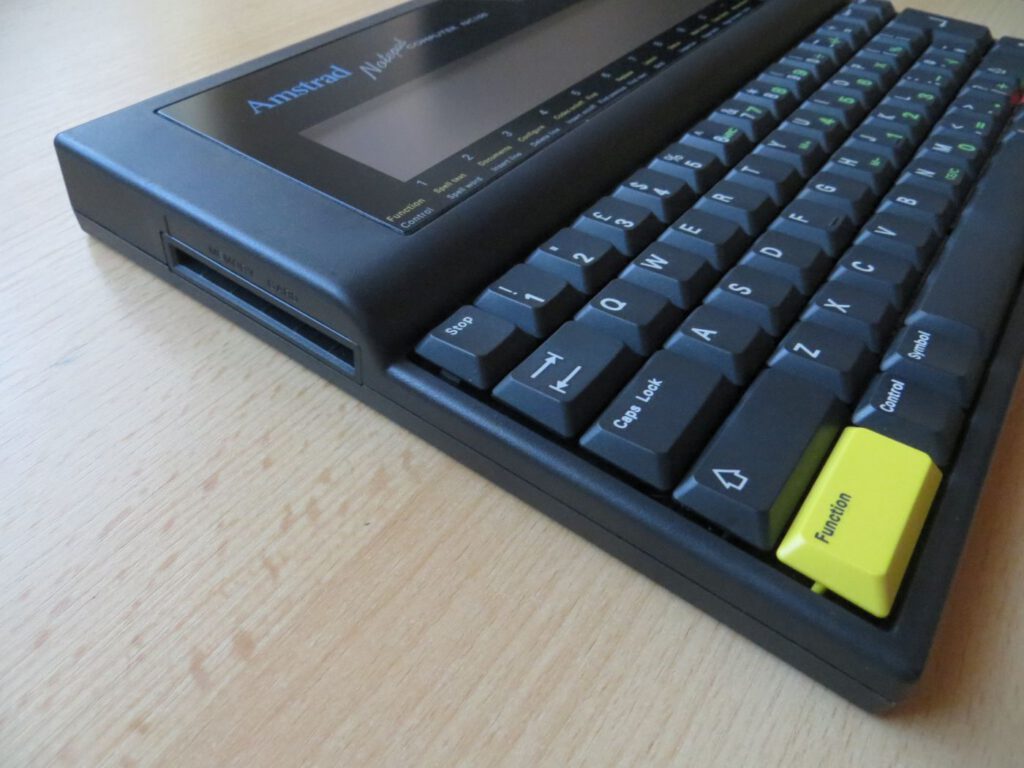
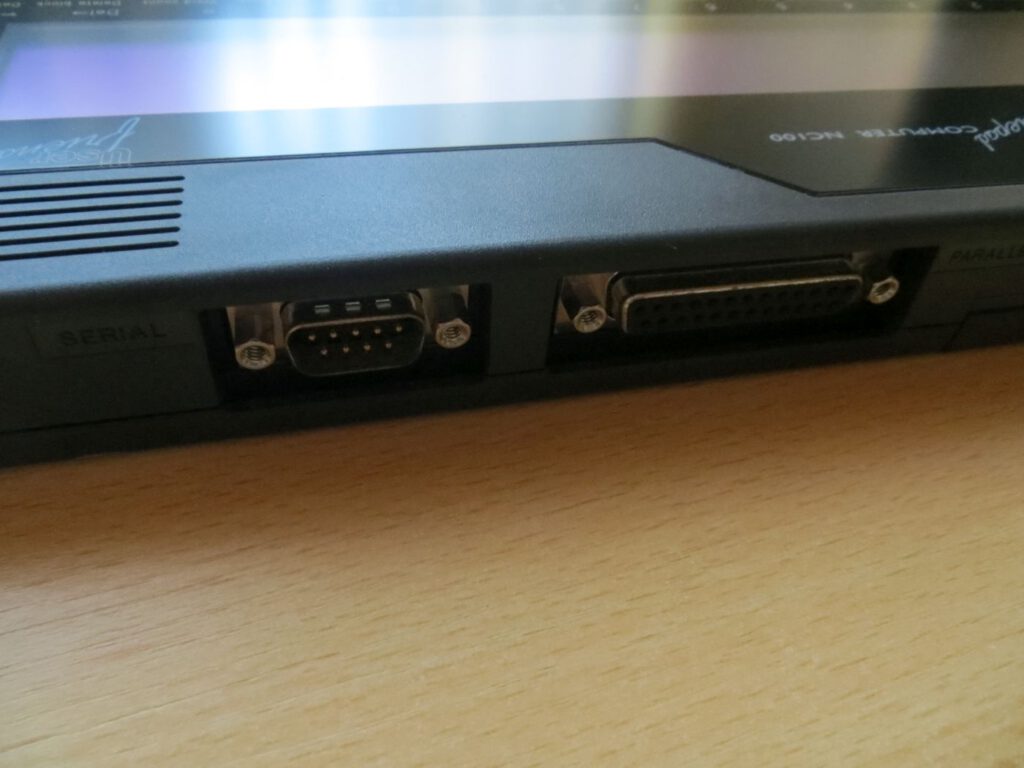
The screen displays 80 characters across 8 lines, which makes the computer energy-efficient and enables a battery life of 20 to 40 hours. The available interfaces include RS232, a parallel port and a PC Card slot. SRAM memory cards with up to 1MB can be used in the PC Card (PCMCIA-I) slot.
The NC100 was developed with the aim of creating a user-friendly portable computer. The developers were given this brief by the company’s CEO, Alan Sugar, who admitted himself that he had no knowledge of computers. During the development phase, he tested the device repeatedly and even wrote the first chapter of the user manual.
Its user-friendliness stems mainly from programmes designed for novice computer users. The design also included terminal emulation and XMODEM file transfer software, which enabled the NC100 to communicate via analogue dial-up modems.
The NC200 was launched in 1993. This device featured a flip-up screen, displayed 80×16 characters and was equipped with backlighting. It had a built-in 3.5-inch floppy disk drive capable of reading MS-DOS-formatted floppy disks, as well as 128KB of RAM and additional software stored in ROM, such as Tetris and a spreadsheet programme with basic database functionality. However, all these functions consumed a great deal of power, which is why five C-size batteries were required. The floppy disk drive could only be operated with relatively fully charged batteries, and to save power, the backlight could be switched off.
Key combinations
Reset: switch off, hold down the [Function]+[Stop]+[<-Delete] keys, then switch on again.
Self-test: switch off, hold down the [Function]+[Symbol] keys, then switch on again.
Quick access:
[Function]+[B] BBC Basic – exit with *BYE or *QUIT
[Function]+[T] Alarm (timer)
[Function]+[Z] Time zone
[Function]+[A] Set appointment/alarm
[Function]+[S] Serial data transfer programme – configure interface using the [Menu] key
[Function]+[D] Address book
[Function]+[L] Load document using the [Menu] key – file transfer via serial interface
[Function]+[P] Print document
[Function]+[X] Start programme from RAM card
[Function]+[C] Calendar
[Function]+[N] Create new document
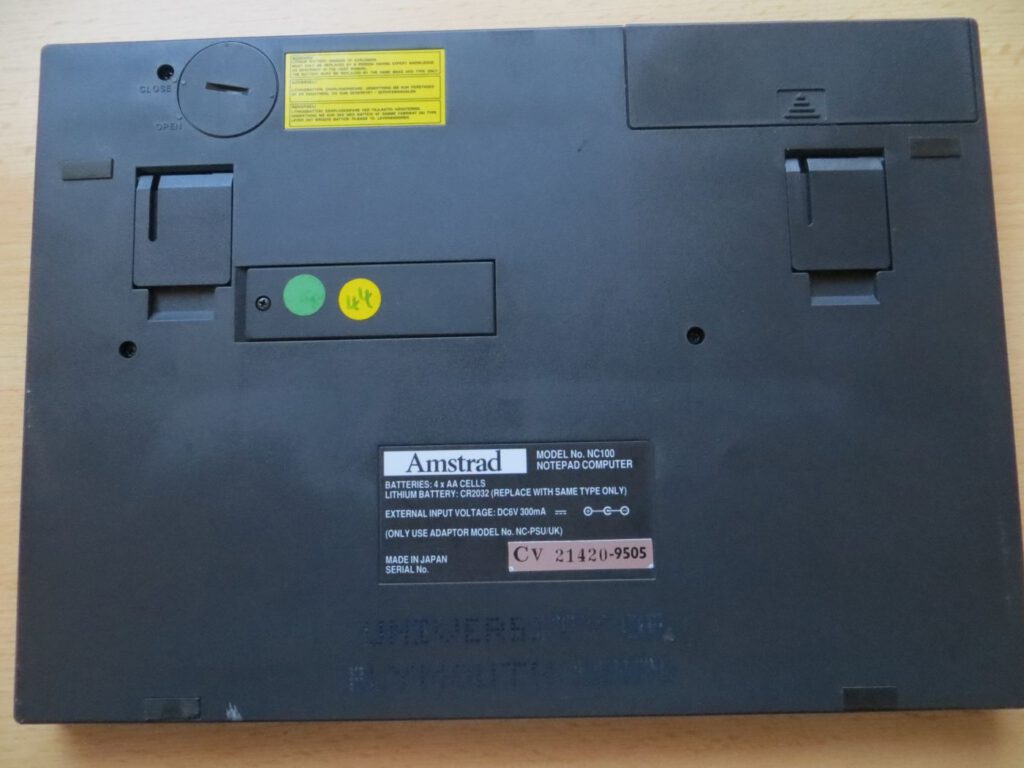
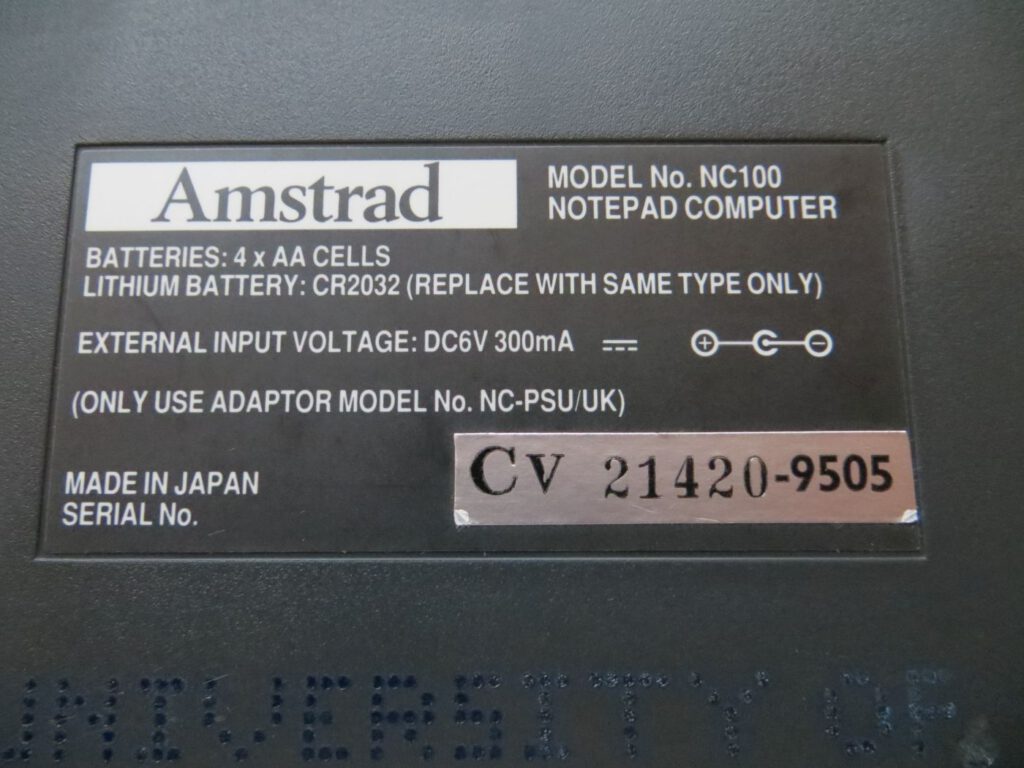
Power supply/batteries
Many NC100 owners appear to use a third-party power supply rather than running the device on batteries. Unfortunately, the standard plug has an unusual polarity: the outer pin is positive (+) and the inner pin is negative (-). If the polarity is reversed, the fuse in the NC100 will blow, causing the device to fail. Fixing this problem is very simple – please refer to John King’s repair guide. A CR2023 button cell is required to save the basic configuration, and four AA batteries are needed for operation.
BBC Basic
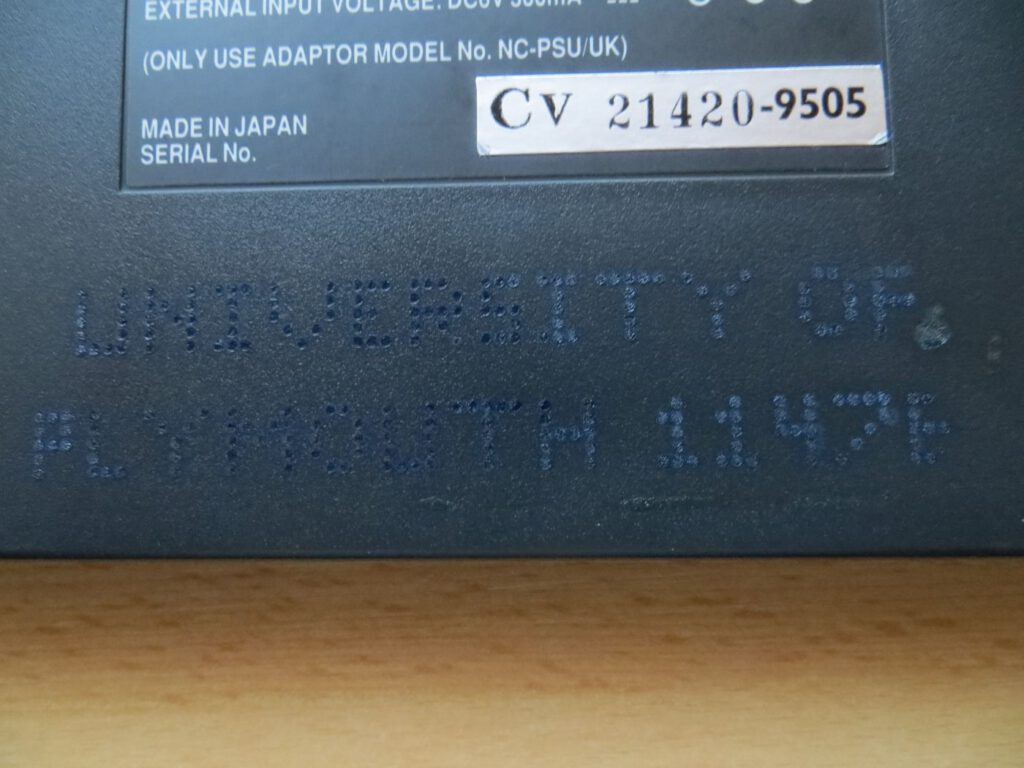
Dem Rechner wurde ein vollwertiges BBC Basic spendiert, das sich nach dem Aufruf [Funktion]+[B] wie folgt meldet:
BBC Basic (NC150) Version 3.11
eine ältere Version kann sich auch mit
BBC Basic (NC100) Version 3.10
melden.
Der Basicinterpreter macht den NC100 befehlskompatibel zu den 8-Bit-Modellen von Acorn. Das Tempo mit dem er dabei vorgeht steht dem eines Heimcomputers in nichts nach.
Data exchange
A serial connection is required for data exchange between the NC100 and a PC. In addition, a terminal programme that supports the XModem protocol must be installed on the PC. As modern computers usually no longer have a serial port, I use a USB-to-serial adapter in the form of a USB stick and the portable version of the terminal programme ‘Tera Term’, which can also handle higher interrupts.
Both devices must be set to the same baud rate to enable data transfer. The NC100 can be set to baud rates of 300, 600, 1200, 2400, 4800 and 9600, which is done via [Function]+[S] and then [Menu]. On the Windows PC, launch ‘Tera Term’ and select ‘Serial’ as the transmission type, choosing the correct port. The serial interface settings can be configured via [Setup] -> [Serial port…], for example to 9600 baud. Once both computers are in terminal mode, you can test whether the connection is established ([Function]+[S]). If text is entered in Notepad, it will also appear on the PC, and vice versa.
Transfer a file from your PC to the NC100
To open the ‘View Saved Documents’ menu on the NC100, press [Function]+[L]. Please note that at least one file must be present to open the menu. If no file exists, please create a new one using [Function]+[N].
First press the [Menu] button, then press [T] to switch to data transfer mode. Next, press the [M] button to initiate a file transfer via the XModem protocol. You must now enter a filename for the file to be received, for example I2C.LIS. Before the transfer can be started using the [Send] button, it must be activated on the PC. In the ‘Tera Term’ programme, this is done via [File] -> [Transfer] -> [XModem] -> [Send…], then select the file, open it and finally start the transfer on the NC100.
Following the successful transfer, the file “I2C.LIS” is now on the NC100; this is a text file containing the BASIC programme for emulating an I2C interface on the parallel port. The programme can be loaded into BASIC by calling up the BASIC interpreter using [Function]+[B]. Then enter the following command: *ECEX “I2C.LIS”.
Transferring data from the NC100 to the PC
Transferring data from the NC100 to the PC follows a similar process. On the PC, XModem reception is enabled in the terminal programme. In ‘Tera Term’, this is done via [File] -> [Transfer] -> [XMODEM] -> [Receive…], then enter the file name and start the transfer. Then, on the NC100, press [Function]+[L] to open the ‘View Saved Documents’ menu, select the desired file using the cursor keys, and finally press [Menu], followed by [T] and [X], to start the data transfer in XModem mode.
The following error may occur:
The NC was able to receive everything the PC sent, but communication in the other direction did not work. So if anyone else is experiencing this problem, here is the fix: Solder a wire between RTS and CTS on the NC connector – short pins 7 and 8.
CP/M
ZCN is a CP/M-compatible operating system for NCs, written under the GPL licence – freeware. Instead of creating a CP/M BIOS for the NC, Marks decided to start from scratch. As a result, ZCN is precisely tailored to the NC hardware on which it runs and allows full use of features such as Instant Off-On (you can switch the machine off at any time; the next time you switch it back on, you can pick up where you left off). Compared to standard CP/M, it also has a number of useful features for hacking and Z80 development. Almost all CP/M software runs on these small machines. And because ZCN uses the 1 MB PCMCIA card like a hard drive, it’s very fast. It also runs for hours on a single set of 4 AA batteries. In addition, there’s a wide range of support programmes – from the custom Z8E debugger and transfer software for communicating with PCs right through to the original NC firmware.
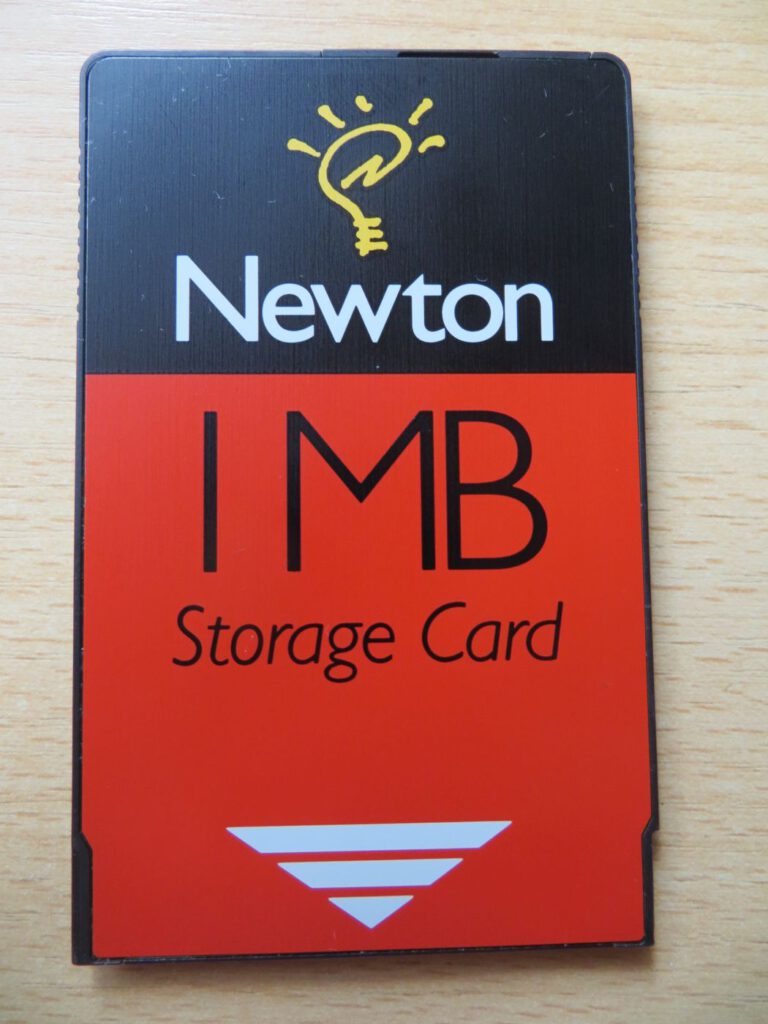
Memory cards
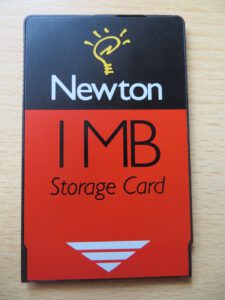
The memory cards are PCMCIA I – SRAM cards. There was a rumour that the memory cards from the Atari Portfolio would also work, but this is not true. The Atari Portfolio used its own format (Bee-Cards). The only place to buy the cards at a reasonable price is likely to be Best Electronics in the USA. The downside is the rather confusing website of this American Atari specialist. 🙂
Ordering from the USA proved to be straightforward; the memory cards arrived quickly and worked perfectly.
The card must be formatted before it can be used. This is done in ‘View Saved Documents’ mode. You can access this mode by pressing [Function]+[L] or [Function]+[Text], followed by [Calculator]. You can now use the [Menu] key to access the document functions and, from there, press the [F] key to format the memory card. As soon as a formatted memory card is inserted into the calculator, all data is automatically saved to it.
If no document has yet been saved on the calculator, you will not be able to access ‘View Saved Documents’ mode. Instead, you will receive the error message ‘No documents are saved. Exit: Stop…’. In this case, a ‘dummy’ document must be created. Press [Function]+[N] to create a new text document, enter any name and press the Enter key. The word processor will open. You should enter at least one character, after which you can exit the programme by pressing the [Stop] key. There is now a file with the specified name, and you can access the “View saved documents” mode by pressing [Function]+[L].
Links
https://www.ncus.org.uk/intro.htm
http://www.best-electronics-ca.com/
http://www.8bit-wiki.de/amstrad-nc-100.html
http://www.cpcwiki.eu/index.php/NC_Series
https://www.ibiblio.org/pub/packages/zcn/
Conclusion
It is only at second glance that numerous powerful special functions become apparent, such as the spell-checker or the ability to create mail merges. What is immediately striking, however, is the device’s flawless localisation. Even the key labels are entirely in German, not to mention the menus. These features do not necessarily qualify the device as a home computer; it is more of a curious hybrid between a minimalist notebook and an organiser. However, pressing the key combination ‘Function’+‘B’ launches the BBC Basic interpreter, making the NC100 command-compatible with the 8-bit models from Acorn. When running Basic programmes, it operates at a speed that is certainly befitting of an 8-bit home computer. However, it cannot compete with a PC notebook from the same era.
Sehr schöner Bericht zu einer interessanten Maschine!
Vielleicht schaffe ich es ja auch irgendwann einmal, ZCN zu installieren 😉