

![Atarimax Ultimate SD [Colecovision]](https://www.jungsi.de/blog/wp-content/uploads/Ultimate-SD.jpg)
A multi-cart has also been available for the *CBS ColecoVision* console for some time. This cartridge is based on SRAM memory; it was developed in the USA by *Atarimax* (Steven Tucker), who also manufactures and distributes it. It currently costs $129.95 plus $6 shipping and can be ordered directly from atarimax.com.
Übersicht
Die Cartridge bietet ein Menü am Bildschirm zum Blättern durch den Inhalt auf der SD-Karte, einschließlich der Sortierung langer Dateinamen. Die Menü-Software unterstützt auch die Anzeige von Bildschirmfotos und das Lesen von Anleitungen direkt mit der Colecovision. Mit dem integrierten Reset-Knopf muss die Konsole nie abgeschaltet werden, um wieder das Menü anzuzeigen.
Es werden MMC, SD und SDHC-Karten unterstützt, die mit FAT oder FAT32 formatiert sind und dabei lange Dateinamen verwenden können.
Es wird keine PC-Software benötigt, somit ist die Cartridge mit jedem Gerät/Betriebssystem kompatibel, das eine mit FAT formatierte Standard-SD-Karte lesen/schreiben kann.
Es werden alle aktuell verwendeten Methoden zur Adressspeicherumschaltung unterstützt, einschließlich „Mega-Cart“ (bis zu 512KB) und Lord of the Dungeon NVRAM. Automatische Speicherung von Lord of the Dungeon NVRAM auf die SD-Karte in einem Format, das auch in einem Emulator verwendet werden kann.
Technical Specifications
– 50 MIPS CPU
– High-speed SD interface
– 512 KB SRAM
– 128 KB flash memory
– Status LED
Each of the four main components of the Ultimate SD can be updated immediately by placing the new firmware files on the SD card and turning on the ColecoVision.
In addition to the cartridge itself, the package includes:
– CollectorVision BONUS Digital Edition game pack – *Mario Brothers* and *Mr. Chin*!
– Pre-prepared SD card (32MB or larger, formatted as FAT32) – menu software (pre-installed on the SD card)
– Lifetime support and free firmware upgrades
– Lifetime warranty
Preparing the SD card
The Ultimate SD-Cartridge expects the menu software and game ROM files to be located in the COLECO folder in the SD card's root directory. The latest version of the software can be found in the firmware update thread on the forum—though finding truly up-to-date firmware is not exactly easy. The newest version that could be tracked down dates back to 2019:
Das Archiv entpacken, um an die Datei CVSDOS.STO zu gelangen, und diese in den Ordner COLECO auf der SD-Karte kopieren.
Nun kann die SD-Karte in der Ultimate SD Cartridge platziert und das System eingeschaltet werden, um die Menü-Software zu booten.
Es wird immer das Verzeichnis COLECO gebootet. Es kann aber auf der kompletten SD-Karte navigiert werden. Für eine gute Übersicht sollten Unterordner angelegt werden, z. B. Coleco/ROM Images (A-F), und dort die entsprechenden ROM-Images A-F abgelegt werden.
Sind die Images auf der Karte, einfach das Verzeichnis per Menü auswählen und Feuer drücken zum Anzeigen des Verzeichnisinhalts.
Es werden Verzeichnisse jeglicher Tiefe und bis zu 512 Zeichen Gesamtlänge unterstützt. Es gibt keine speziellen „Menü-Dateien“, und es ist keine Erstellung von Menüs notwendig, da die Ultimate SD Cartridge den Inhalt des Dateisystems dynamisch liest und diesen mit Hilfe des Bildschirmmenüs anzeigt.
Since sorting long FAT32 filenames places a huge burden on an embedded CPU, it is recommended to limit the number of ROM files per directory to 100, even though the menu software supports up to 512 files per directory.
If a directory containing a large number of files is required, the display speed can be significantly increased by disabling directory sorting in the menu.
Die Optionen der Cartridge können immer durch Drücken von „*“ auf dem Keypad aufgerufen werden.
When sorting is disabled, reading a full directory containing 512 files (with long FAT32 filenames) takes less than a second. Enabling sorting noticeably slows down the display of directories containing 100 or more files.
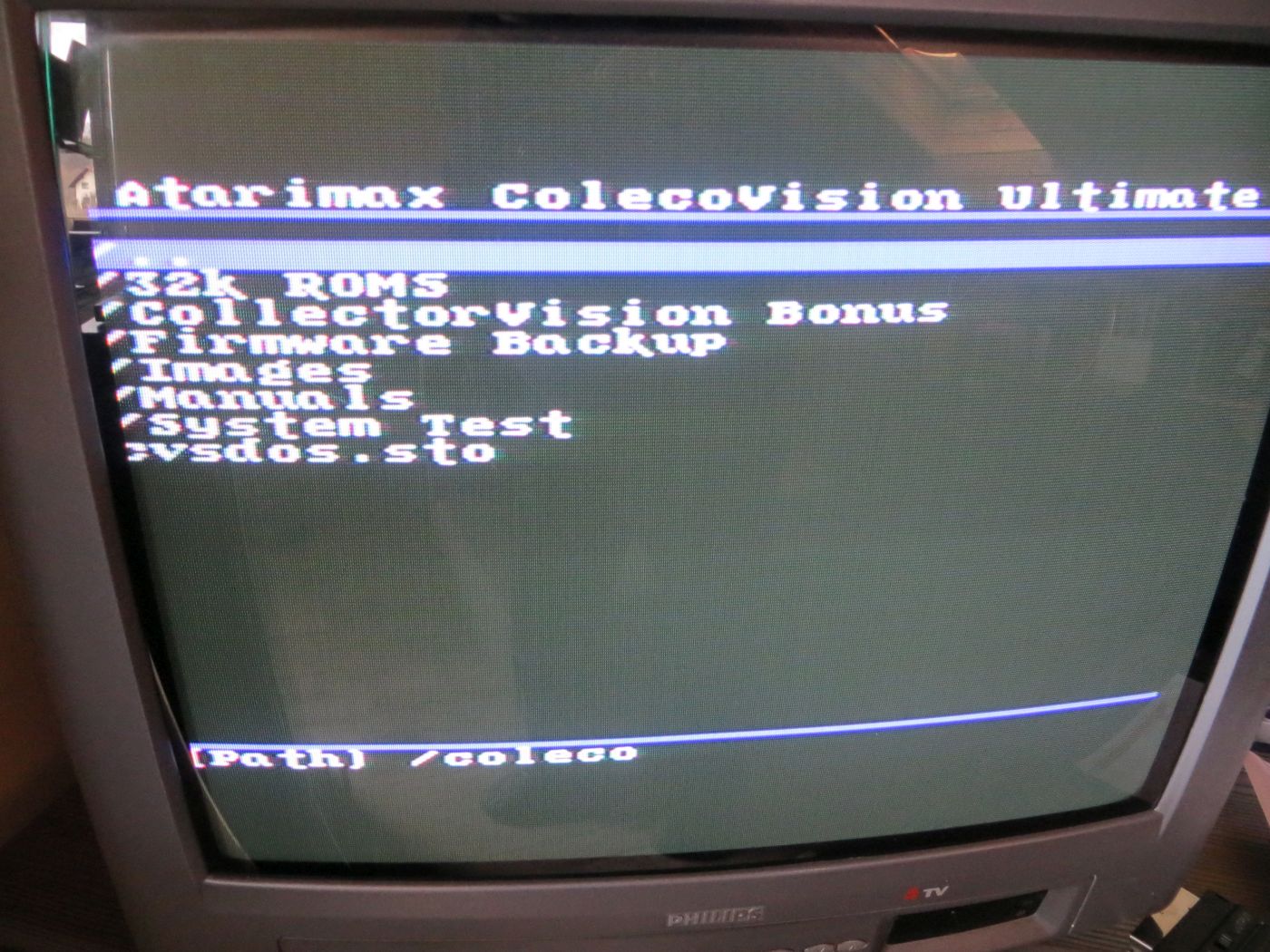
On-Screen Menu Basics
The main menu screen consists of four parts: the title bar, the SD card directory area, the status bar, and the selection bar.
Die Titel-Leiste
Diese Leiste erscheint an oberster Stelle der SD-Verzeichnis-Anzeige. Der Standard-Titel lautet „Atarimax Colecovision Ultimate“ und kann personalisiert werden, indem in der Menü-INI-Datei ein neuer Titel vergeben wird.
SD Card Directory Display
The contents of the current directory are displayed here.
The selection bar always highlights the currently selected object and can be moved up or down using the ColecoVision game controller.
Verzeichnissen auf der SD-Karte wird das Pfad-Zeichen ‚/‘ vorangestellt. Dateien werden ohne vorangestelltes Zeichen angezeigt.
Twenty lines are displayed. You can navigate through the list using the display bar: pressing up or down on the controller moves one line in the corresponding direction, while pressing left or right moves forward or backward by a full page.
Current Path and Error Messages
The SD card directory currently in use is displayed on the last line of the menu software.
If an error related to the menu software occurs—for example, if you attempt to load an invalid ROM image—the path shown on the bottom line is replaced by text describing the error in detail.
Verzeichnisse wechseln
Um ein Verzeichnis zu wechseln, markiere einfach das gewünschte Verzeichnis mit der Auswahl-Leiste per Spielcontroller und drücke Feuer. Zum Wechseln in das vorherige Verzeichnis wähle den Eintrag mit der Bezeichnung ‚\..‘ aus. Wenn es diesen Eintrag nicht gibt, bist du schon im obersten Verzeichnis der SD-Karte.
Laden eines ROM-Images
Zum Laden eines ROM-Images wähle es mit der Auswahl-Leiste und drücke Feuer auf dem Controller. ROM-Images können auch andere Endungen wie .ROM haben. Einige andere Möglichkeiten sind ‚.COL‘, ‚.BIN‘, ‚.STO‘ und ‚.HYB‘.
Wenn die Anzeige der Dateierweiterungen im Optionen-Menü abgeschaltet ist, werden keinerlei Erweiterungen angezeigt.
If errors occur, they are displayed in detail in the bottom line.
Loading a screenshot
The Ultimate SD menu software also supports displaying ColecoVision screenshots in the Coleco Paint PATCOL format (file extension .PC). Suitable images can be created using tools such as Tursi’s Convert9918, which can convert TMS9918 graphics into this format.
To load a screenshot directly, select the screenshot file and press "Fire" on the controller. To exit the display, simply press "Fire" again.
Loading a manual
The menu software supports the display of ASCII text files and game manuals.
To load a manual directly, select the text file (it should have the .TXT file extension) and press the fire button on the controller. Once loaded, simply follow the on-screen instructions to navigate the display. The files can be up to 256 KB in size. Lines within the file can be up to 32 characters long; the text looks best when formatted accordingly.
Automatic loading of linked material
Die Menü-Software der Ultimate SD unterstützt die automatische Anzeige von Screenshots, Spieleanleitungen und Bildern der Boxen, ohne die Verzeichnis-Anzeige zu verlassen.
Um dies zu erreichen, muss die Anleitung, der Screenshot und das Bild der Box den exakt gleichen Dateinamen haben wie das zugehörige ROM-Image, außer bei der Dateiendung.
Beispiel: du hast ein ROM-Image mit dem Namen „Zenji.ROM“, der Screenshot sollte den Namen „Zenji.PC“, das Bild der Box ebenfalls „Zenji.PC“ im passenden Ordner und die Anleitung den Namen „Zenji.TXT“ haben.
Um die automatische Anzeige dieses verknüpften Materials zu aktivieren, platziere es in den entsprechenden Unterverzeichnissen innerhalb des „\COLECO“ Ordners auf der SD-Karte.
Spiele-Anleitungen: *.TXT-Datei in „\COLECO\Manuals“
Screenshots: *.PC-Datei in „\COLECO\Images“
Box-Bilder: *.PC-Datei in „\COLECO\Boxes“
If these directories do not yet exist, simply create them within the COLECO directory.
Automatic loading of screenshots, manuals, and box art
Once everything is organized as described above, the Ultimate SD menu software can automatically locate and display the data associated with the ROM images. Pressing 1 on the controller displays the screenshot for the highlighted game, while 3 shows the manual and 7 displays the box art.
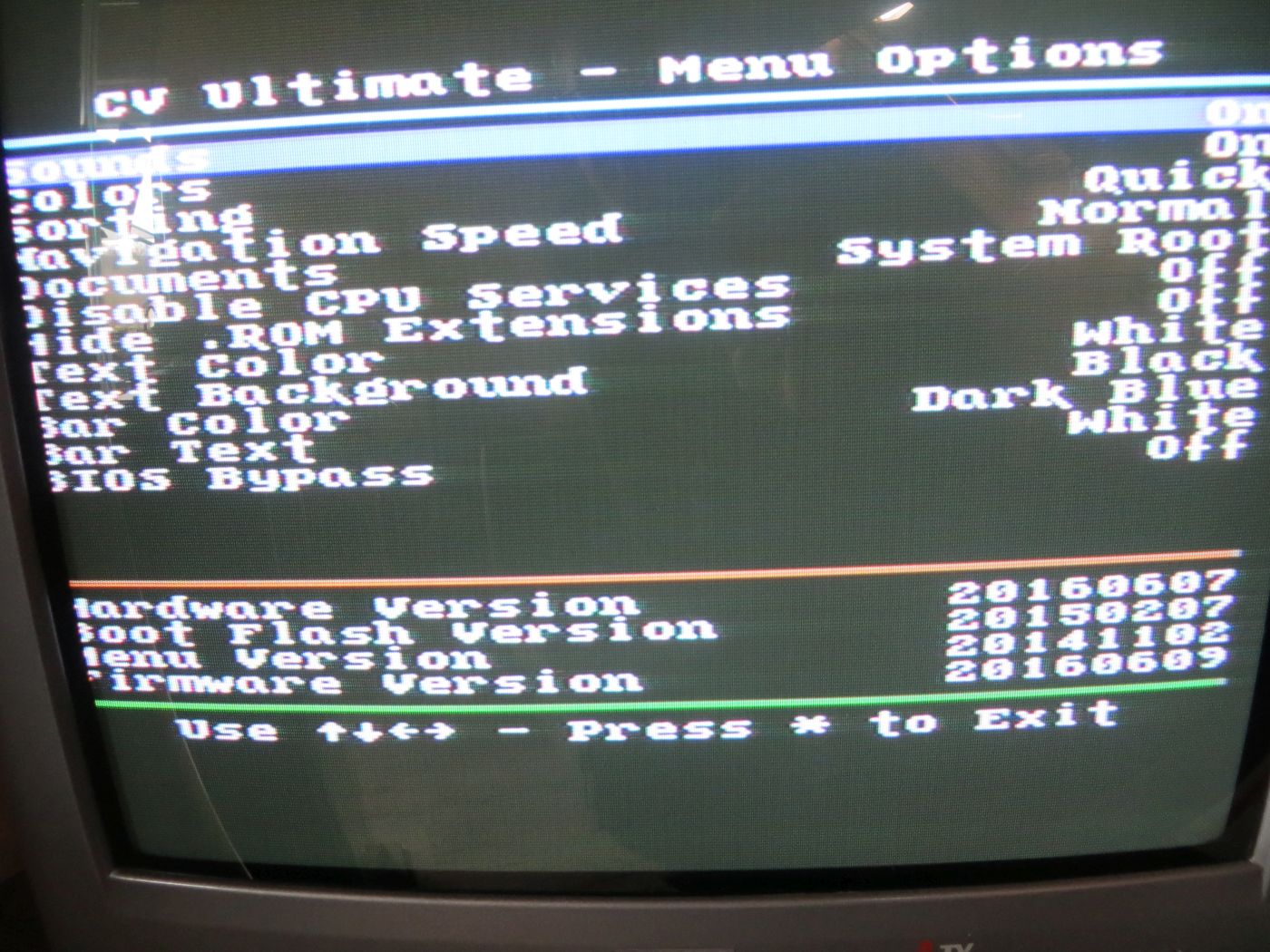
Options Settings
The corresponding screen can be accessed at any time by pressing *. These settings are stored internally in the cartridge's flash memory and apply to all maps, unless overridden by a configuration file (*.ini) on the current map.
The current hardware, boot, menu, and firmware revisions are displayed at the bottom of this screen. While using the menu, you can press * at any time to save the settings and exit the screen.
Sounds
Schaltet alle Sounds der Navigation ab, wenn auf „Off“ gestellt.
Colors
Turns all dynamic color effects on or off.
Sorting
Die alphabetische Sortierung der „langen Dateinamen“ auf der SD-Karte kann eine spürbare Zeit verbrauchen, wenn die Verzeichnisse mit ROM-Images sehr groß sind.
Die Standardeinstellung hierfür ist „Quick“, die eine hohe Anzahl von ROM-Images in den Verzeichnissen ermöglichen sollte, ohne große Verzögerungen bei der Navigation zu haben.
Diese Option kann auch auf „Off“ gestellt werden. Dadurch wird die alphabetische Vorsortierung der Verzeichnisse während dem Laden abgeschaltet, was bedeutet, dass die Dateien in der Reihenfolge angezeigt werden, in der sie auf der SD-Karte vorliegen, was komplett zufällig aussehen kann.
Wenn du wirklich sehr große Verzeichnisse mit ROM-Images haben musst und diese Einstellung auf „Off“ bleiben soll, kannst du die Vorsortierung auch auf dem PC mit einem Tool wie DriveSort erledigen lassen.
Wenn diese Option auf „Complete“ gestellt wird, dauert sie am längsten und resultiert in der genauesten Sortierung der Dateinamen. Diese Einstellung ist nicht empfohlen, bis du bemerkst, dass Dateien mit der Einstellung „Quick“ nicht richtig sortiert sind, da es sehr viel länger dauern kann, bis die Dateien angezeigt werden.
Navigation speed
This option controls how quickly the display bar in the directories responds to the controller.
Dokumente
Wenn ein Screenshot oder eine Anleitung für ein markiertes ROM-Image ausgewählt wird, prüft die Firmware die „Manuals“- und „Screenshots“-Verzeichnisse im Wurzel-Verzeichnis des Systems „\Coleco\“.
Du kannst diese Option auf „Subdirectories“ ändern, um die Firmware zu zwingen, nach diesen Verzeichnissen im aktuell ausgewählten Unterverzeichnis zu suchen.
Deaktivieren der CPU Services
Wird diese Option auf „On“ geändert, veranlasst das die Ultimate SD Cartridge, alle erweiterten Dienste abzuschalten, wenn ein ROM-Image geladen wurde. Es wird empfohlen, die Einstellung auf „Off“ zu belassen, bis Probleme auftreten.
Verstecke .ROM Erweiterungen
Durch die Einstellung „On“ werden die Erweiterungen der Dateinamen ausgeblendet.
Text Color
Change the text color in the directory navigation
Text Background
Change the background color of the text in the directory navigation.
Bar Color
Change the background color of the selection bar in the directory navigation.
Bar Text
Change the text color of the selection bar in the directory navigation.
BIOS Bypass
Wird diese Einstellung auf „On“ gesetzt, versucht die Firmware, das lange Spieltitel-Intro beim Start eines von Coleco veröffentlichten Spiels zu umgehen.
Dies ist eine Beta-Einstellung, daher einfach auf „Off“ stellen, sollten Probleme auftauchen.
Conclusion
Ist jemand bis zum Fazit gekommen? 🙂 Ein sehr langer Text – eigentlich die Übersetzung des Handbuchs. An der Fülle an Informationen sieht man genau wie viel Arbeit und Mühe hinter diesem Projekt steht. Steven Tucker macht das mit Herzblut und ist von seinem Produkt überzeugt. Viel besser kann es nicht gemacht werden. Ein „Must Have“ für alle Colecovision-Besitzer.
![Expansion Module #2 [CBS Colecovision]](https://www.jungsi.de/blog/wp-content/uploads/CBS-Colecovision-Expansion-Module-2-Lenkrad.jpg)
![ColecoVision [Coleco]](https://www.jungsi.de/blog/wp-content/uploads/cbs-colecovision.jpg)
![Super Game Modul [Colecovision]](https://www.jungsi.de/blog/wp-content/uploads/Super-Game-Module-Oberseite.jpg)
Leave a Reply