

![UniCMT [Sharp MZ]](https://www.jungsi.de/blog/wp-content/uploads/UniCMT-Vorderseite.jpg)
With the UniCMT, I will—for the time being—conclude my series of expansions for Sharp MZ computers. However, I will continue to follow the scene and update my articles should anything new emerge.
What is the UniCMT?
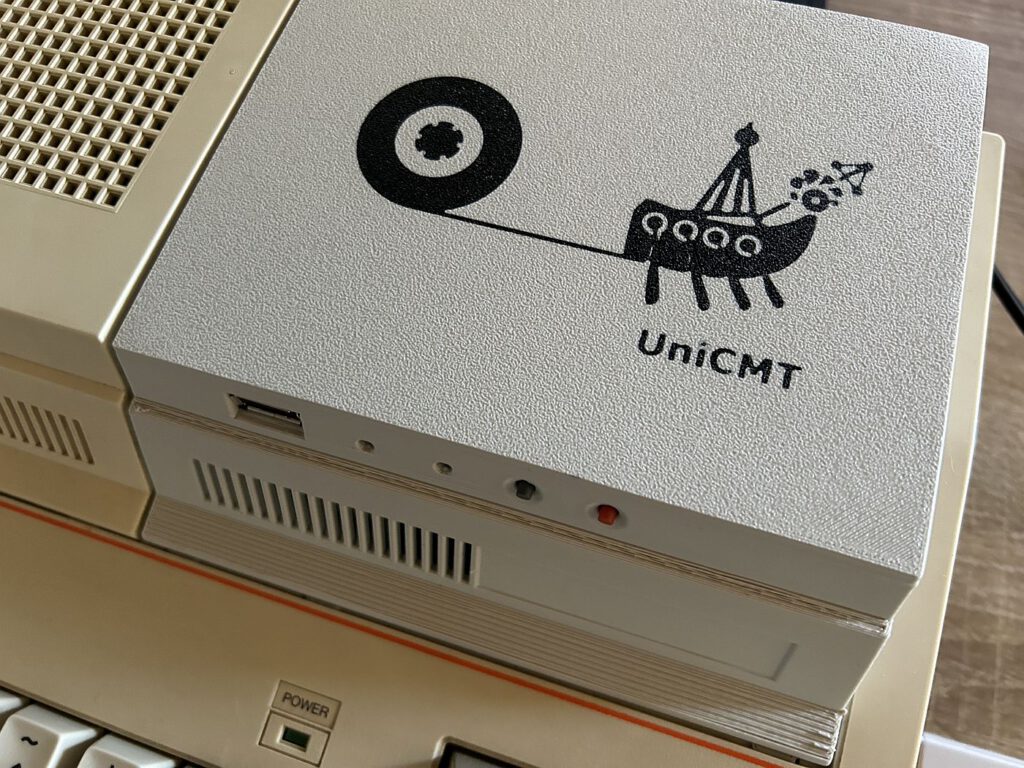
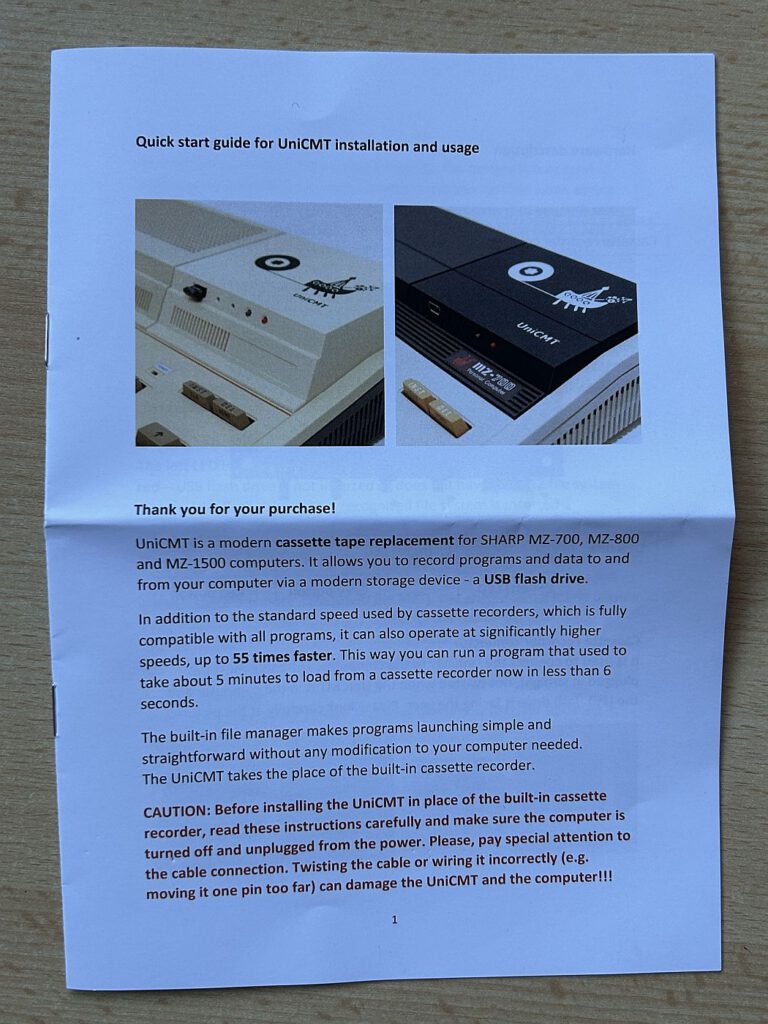
UniCMT is a modern cassette recorder replacement for the Sharp MZ-700, MZ-800, and MZ-1500 models. In addition to classic cassette recorder emulation, the device offers the ability to load programs directly and significantly faster. Furthermore, it supports operation with a RAM disk, thereby making the overall interaction with the MZ computers considerably faster and more convenient.
For example, the game *Flappy* requires a loading time of about five minutes on a standard cassette recorder. With UniCMT, it launches on a Sharp MZ-800 in just six seconds.
Connectivity and Compatibility
The UniCMT simply connects to the 9-pin cassette recorder port of the Sharp MZ-700, MZ-800, or MZ-1500. No modifications to the computer are required. The device supports loading MZF, MZT, and M12 files at speeds of up to 55x, and can also handle multi-part MZT files.
A USB flash drive with a FAT32 file system serves as the storage medium. The UniCMT Manager handles file management and launches automatically upon powering on the computer—even if no USB drive is inserted.
Ordering and Case
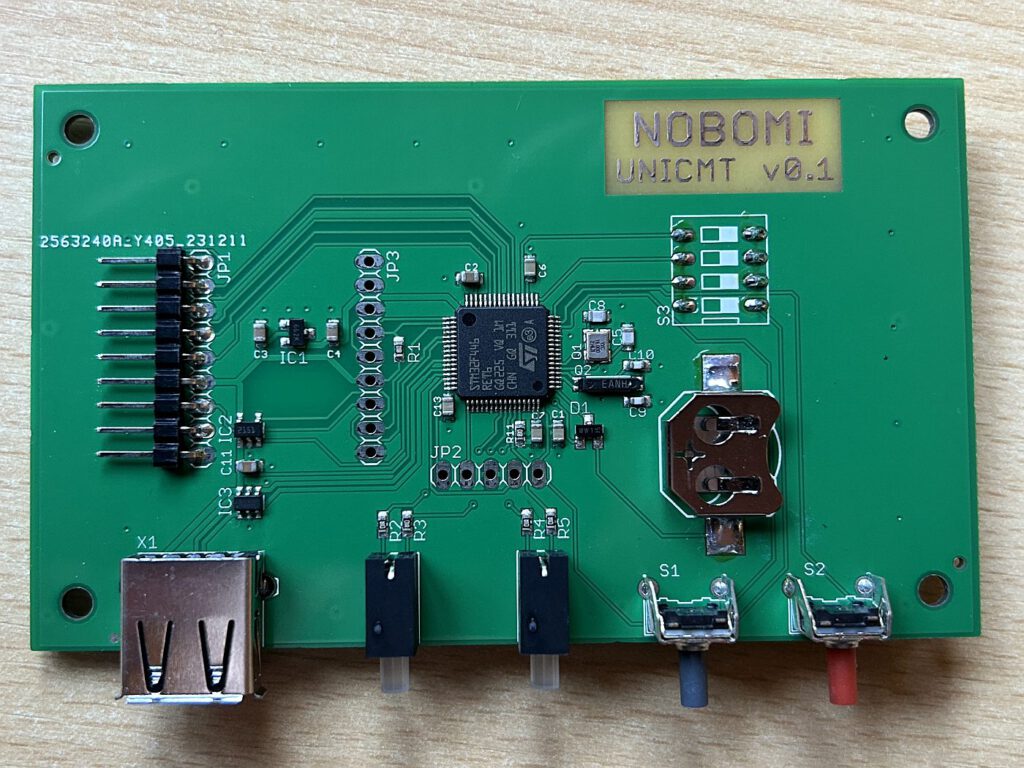
I opted for the version without a housing—ordering only the circuit board and cable—as I wanted to 3D print the case myself. It is available at Retrocomp.cz and costs between €56 and €82.
Firmware Update and New Features
Firmware version 0.5 was released at the end of February, bringing with it several improvements. Particularly noteworthy is the new *Save function*, which now makes it possible to save data to a virtual cassette.
Technical adaptation to the various Sharp models presented a challenge, as each utilizes different transmission speeds. For instance, the Japanese MZ-700 loads at 692 baud, whereas the European MZ-800 operates at 1160 baud. The UniCMT leverages this potential, loading at a default speed of 1593 baud—an increase of 37% compared to the original.
Installation and Operation
The installation couldn't be simpler: the old cassette recorder is removed, the UniCMT is connected, and you're ready to go. The only important thing is to connect the cable correctly.
Upon powering on the computer, the UniCMT Manager launches automatically, allowing you to view and execute files. The USB stick does not necessarily need to be inserted to launch the Manager. To ensure that the initial loading process does not take too long, a clever technique is employed: initially, only the program header is loaded, which then subsequently loads the actual Manager—and does so in an accelerated mode.
No specific folders or structures are required on the USB stick. The only exception is the firmware update, which also includes a manager. To perform an update, simply copy the file *unicmt.app* to the USB stick and switch on the device while holding down the gray button on the UniCMT.
Status LEDs and Switches
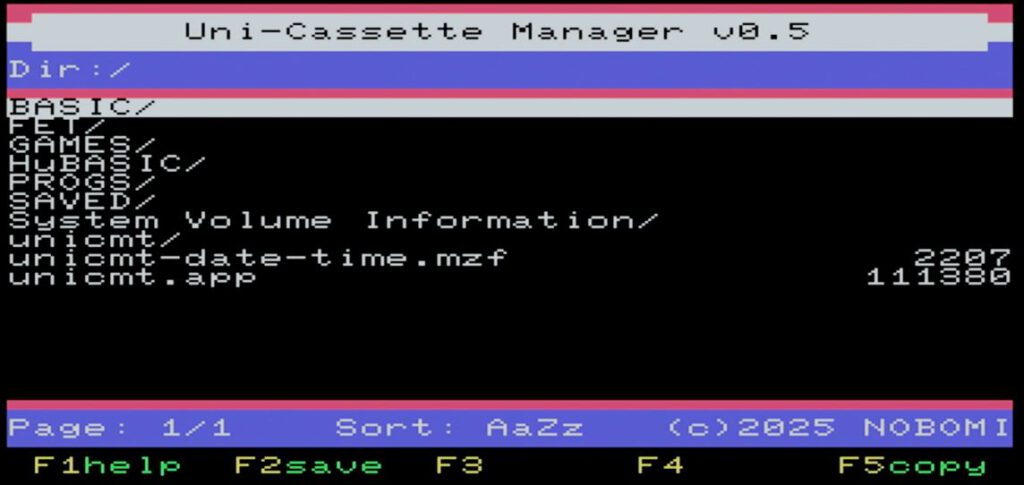
The two LEDs on the UniCMT provide information about the current operating status:
- Left LED (Red): No USB stick inserted or incorrect file system.
- Left LED (Green): USB stick with recognized file system inserted.
- Right LED off: No active data access; Manager is loading.
- Right LED (Green): Additional data available (Multifile MZT); playback starts upon motor signal.
- Right LED (Red): Playback finished; no data is being sent.
- Rechte LED blinkt orange: Laden vom emulierten Kassettenrekorder
On the back of the device, there is a four-position DIP switch. Currently, only switch four is of significance, as it activates the MZ-700 mode.
Operation and File Management
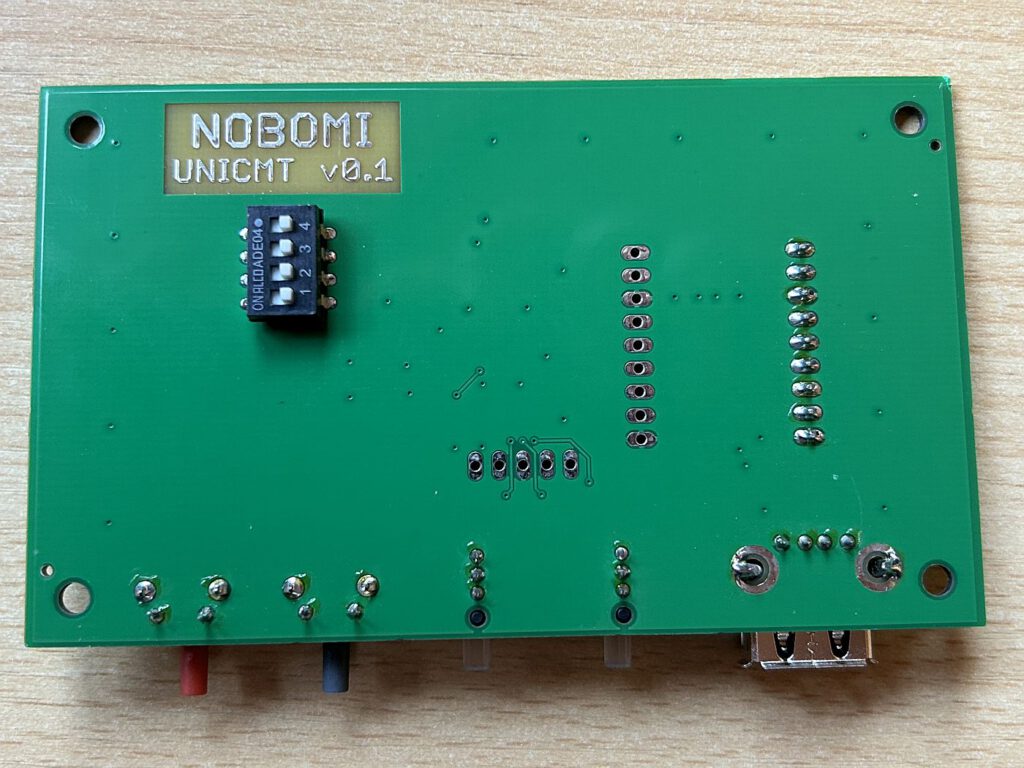
After switching on the computer, press the C key on the MZ-800 or the L key on the MZ-700 to launch the UniCMT Manager. The USB stick can be removed and reinserted at any time during operation.
The manager operates in 40×25 character mode and offers simple navigation: the arrow keys allow you to scroll through files and directories, while the left and right arrow keys enable page-by-page browsing. Pressing the Enter key loads and launches a file in accelerated mode.
- Spacebar: Sort files
- F1: Show brief help
- Letter Keys: Jump to the next file starting with the respective letter.
- F-Keys: Not all functions implemented yet.
Storing Data on Virtual Tapes
With the new firmware, it is now also possible to save to a virtual cassette—and at any speed. The file is saved using a naming scheme such as DEMO.BAS_________#002.MZF. The number at the end indicates the version and can range up to 999.
Zum Laden einer gespeicherten Datei aus BASIC ist zunächst ein Umweg erforderlich: Da das virtuelle Kassettenlaufwerk nach dem Speichern leer ist, muss die Datei zunächst im UniCMT-Manager ausgewählt und „ausgeführt“ werden. Der Manager erkennt, dass es sich um eine BASIC-Datei handelt, startet BASIC und stellt die Datei im virtuellen Kassettenlaufwerk bereit. Anschließend kann sie per Load geladen und mit RUN „CMT:“ gestartet werden.
Integrated Text Editor
The STM32 flash memory contains the text editor FET, which allows BASIC programs to be edited directly.
Configuration Options
It is possible to create a configuration file (/unicmt/run.cfg) that specifies which file types should be launched with which program and at what speed. Examples:
- Typ 02: Hu-BASIC
- Typ 05: MZ-BASIC
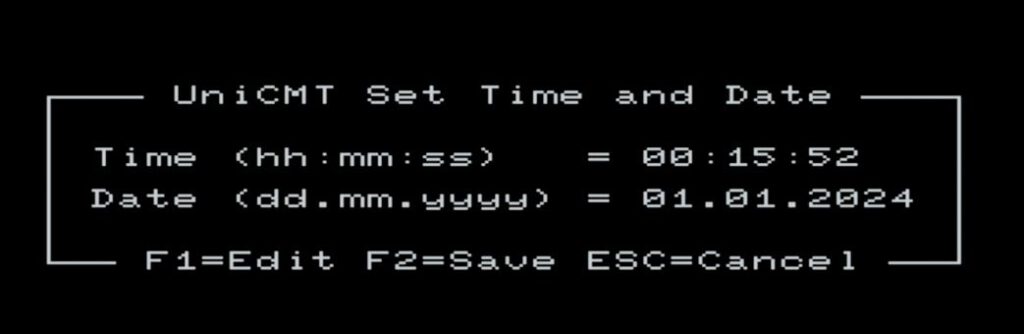
The program *unicmt-date-time.mzf* can be used to set the UniCMT's internal clock, provided that a CR1220 battery has been installed. This timestamp is then used when saving files. Since I do not use the device very frequently, I personally opt not to use this feature.
Conclusion
Those who do not wish to spend the approximately €150 for the UniCard Mk3b—and can forgo its additional features such as the VGA port, networking capabilities, and floppy disk emulation—will find the UniCMT to be an excellent alternative for quickly loading programs onto MZ computers. It is easy to use, significantly accelerates the workflow, and makes using Sharp computers even more convenient.
![Sharp MZ-731 [Sharp]](https://www.jungsi.de/blog/wp-content/uploads/Sharp-MZ-731-Oberseite.jpg)
![MZuiTape [Sharp MZ]](https://www.jungsi.de/blog/wp-content/uploads/MZuiTape-Oberseite-1.jpg)
![Beyond/Mine Snake/Numbertron [Sharp MZ]](https://www.jungsi.de/blog/wp-content/uploads/Sharp-Spiele.jpg)
Leave a Reply